Vector DSP Engineer's LatencyMon Fixes for Windows ASIO Dropouts
Most Windows ASIO dropouts trace back to DPC (deferred procedure call) or kernel driver latency, not your CPU or your DAW. The fastest fix path: switch to your interface's own manufacturer ASIO driver, raise your buffer size one notch, and move your USB cable to a rear motherboard port. Those three changes resolve the majority of intermittent clicks, pops, and dropouts before you touch anything else.
TL;DR:
- Switching to your interface's manufacturer ASIO driver and increasing the buffer size are primary steps that resolve most dropouts caused by driver latency.
- Moving your USB connection to a rear motherboard port and avoiding USB hubs can significantly reduce timing issues affecting audio stability.
- Running LatencyMon helps identify specific drivers or hardware components causing DPC spikes, which are often related to graphics, network, or USB controllers.
- Updating chipset drivers, rolling back recent GPU or network driver updates, and disabling unnecessary overlay or utility software can mitigate high DPC latency problems.
- For urgent live sessions, using a higher buffer size, optimizing power settings, and minimizing background applications prevents dropouts without complex diagnostics.
Table of Contents
- Quick Checklist: 6 Immediate Fixes to Try Now
- Diagnose the Root Cause With LatencyMon and WPR/WPA
- USB Port, Cable, and Controller Troubleshooting
- Driver, GPU, and Network Fixes for DPC Spikes
- DAW and ASIO Settings: Buffer Size, Sample Rate, and Driver Choice
- Power Plan, BIOS, and OS Settings That Affect Real-Time Audio
- Stepwise Testing: Clean Boot, Isolate, Reproduce, Report
- Quick Mitigations for Live Performance and Urgent Sessions
- Vector DSP Engineer Notes: What Kernel Timing Actually Breaks
- Direct Links for Diagnostics and Troubleshooting
- Why Most Advice on This Topic Gets the Order Wrong
- Sources
Quick Checklist: 6 Immediate Fixes to Try Now
Before running any diagnostic software, work through these fixes in order. Each takes under two minutes and rules out the most common causes of Windows audio dropouts.
- Switch to your interface's manufacturer ASIO driver. ASIO4ALL is a generic wrapper meant for emergency use, not daily production reliability.
- Raise your ASIO buffer size by one step (256 to 512 samples, for example) and retest.
- Move your interface to a rear motherboard USB port. Front-panel ports and internal hubs add timing overhead.
- Skip USB hubs entirely unless the hub is powered and rated for audio-class devices.
- Set Windows to a performance-focused power plan and disable USB selective suspend in Device Manager.
- Kill Wi-Fi, Bluetooth, and any streaming or screen-recording software running in the background.
If dropouts persist after all six, you're dealing with a driver-level timing conflict. That's where LatencyMon comes in.
Diagnose the Root Cause With LatencyMon and WPR/WPA
LatencyMon reads your system's DPC and ISR (interrupt service routine) activity in real time and tells you exactly which driver is stealing processing time from your audio thread. Load a real project, hit record or playback, and let it run for 10 to 15 minutes while you work normally. Short test runs miss intermittent spikes that only show up under load.
What to look for once the report finishes:
- Highest DPC/ISR execution times. Anything spiking into the multiple-millisecond range signals a real risk of glitches, since routines exceeding roughly 1 millisecond start eating into your audio callback window.
- Hard pagefaults. Frequent hard faults point to memory pressure or a driver forcing disk access mid-session.
- Driver filenames in the offender list. Names like
nvlddmkm.sys(GPU),usbxhci.sys(USB controller), ortcpip.sys(network stack) tell you which subsystem to investigate next.
Not every flagged driver is guilty. tcpip.sys often gets blamed when the actual cause is antivirus software or a firewall hooking into the network stack. Disable your security suite temporarily, switch off Wi-Fi, and rerun the test. If the offender disappears, you've found a false positive, not a fix.
Pro Tip: Save each LatencyMon report as you isolate variables. Comparing reports side by side shows you exactly which change moved the needle, instead of relying on memory.
For persistent, hard-to-pin-down cases, escalate to Windows Performance Recorder and Windows Performance Analyzer (WPR/WPA). These built-in Microsoft tools capture trace-level kernel data that LatencyMon summarizes, useful when you need to hand concrete evidence to an interface manufacturer's support team.
USB Port, Cable, and Controller Troubleshooting
ASIO audio moves over USB using isochronous transfer mode, which reserves a fixed time slot for each packet. Any timing hiccup, a shared controller, a marginal cable, a hub adding latency, causes a missed slot and an audible glitch or full disconnect.
Work through this test sequence when USB is the suspect:
- Swap from a front-panel port to a rear motherboard port directly wired to the chipset.
- Remove any USB hub from the chain and connect the interface directly.
- Try a different USB cable, ideally the one that shipped with the interface.
- Test a different USB controller if your motherboard has multiple headers (some are chipset-native, others run through a third-party controller).
- Open Device Manager → View → Devices by Connection to see which other devices share a controller with your interface. A webcam or external drive sharing that controller can starve your audio bandwidth.
A powered hub helps only when your interface draws more current than a single USB port reliably supplies. If dropouts continue even on a direct, hub-free rear connection, suspect the interface's internal clock or bus power circuitry rather than the cable.
Driver, GPU, and Network Fixes for DPC Spikes
Once LatencyMon points to a specific driver, the fix usually falls into one of three buckets: graphics, networking, or USB controller drivers. These three account for most of the high DPC offenders reported by Windows driver-latency diagnostics.
- GPU driver (
nvlddmkm.sys,dxgkrnl.sys): run a clean reinstall with Display Driver Uninstaller (DDU) before installing the latest driver fresh. Disable any GPU audio output you're not using. - Network drivers (
tcpip.sys,ndis.sys): roll back to a stable prior version if a recent update introduced the spike, and test wired Ethernet against Wi-Fi to isolate the culprit. - USB controller (
usbxhci.sys): update chipset drivers directly from the motherboard manufacturer, not through Windows Update, which often ships generic versions. - Audio-hooking utilities: uninstall or disable software like Nahimic, NVIDIA Broadcast, or VoiceMeeter when they're not actively needed. These insert themselves into the audio pipeline and frequently add jitter.
Pro Tip: GPU overlays for game capture or RGB lighting control can trigger intermittent DPC spikes that only appear under specific loads. If LatencyMon flags your GPU driver sporadically rather than constantly, check for an overlay app running quietly in the background.
DAW and ASIO Settings: Buffer Size, Sample Rate, and Driver Choice
Your DAW's audio settings interact directly with your ASIO buffer, and mismatches here cause a huge share of reported dropouts. Always select the manufacturer's ASIO driver first; reserve ASIO4ALL strictly for basic testing or genuine emergencies.
- Tracking and monitoring: keep buffers low (64 to 128 samples) for the tightest round-trip latency.
- Mixing and mastering: raise buffers to 512 to 1024 samples, where underrun risk drops sharply and CPU headroom matters more than latency.
- Sample rate consistency: confirm your DAW, your interface's control panel, and Windows Sound settings all use the same sample rate. A mismatch forces resampling that adds load and can cause clicks.
- Plugin load: freeze or render CPU-heavy tracks, then load a stripped-down template to confirm whether plugins, not the system, are causing the glitch.
Power Plan, BIOS, and OS Settings That Affect Real-Time Audio
Windows power management and BIOS settings routinely interfere with real-time audio without any obvious symptom besides random dropouts. Change one setting at a time and retest before moving to the next.
- Set Windows to Performance or Best Performance mode, and set maximum processor state to 100% in advanced power settings.
- Disable USB selective suspend under USB settings in the power plan.
- Set PCIe Link State Power Management to Off.
- In BIOS/UEFI, disable aggressive eco modes, CPU C-states, and any automatic throttling features.
These changes, along with BIOS updates and reduced hard pagefault activity, show up repeatedly in Microsoft's own troubleshooting guidance for clicks and pops. For background on why low-latency audio depends on tight power configuration, see what low-latency audio actually requires from a system-design angle, and read Tempered's breakdown of Windows power modes for the mechanics behind CPU throttling.
Stepwise Testing: Clean Boot, Isolate, Reproduce, Report
A methodical isolation process finds root causes that random setting changes miss entirely.
- Clean Boot Windows (msconfig, disable all non-Microsoft startup services), then run your session for 15 to 20 minutes per configuration change.
- Remove non-essential devices, external drives, and hubs, and test with only your audio interface connected.
- Run LatencyMon during the exact session where dropouts occur, using the same DAW project and buffer settings, then save the report.
- Re-enable services one at a time, retesting after each, until the dropout returns.
| What to collect | Why it matters |
|---|---|
| LatencyMon top offenders list | Names the exact driver causing DPC delay |
| Hard pagefault count | Flags memory or disk-access interference |
| Exact reproduction steps | Lets a vendor recreate the issue on their end |
| Buffer size and sample rate used | Rules out simple configuration mismatches |
When you contact a vendor's support team, attach the saved LatencyMon report alongside these reproduction steps. This is the same evidence developers use to triage kernel-level timing bugs, and it turns a vague "it glitches sometimes" ticket into something a support engineer can actually act on.
Quick Mitigations for Live Performance and Urgent Sessions
When a show or a critical take is minutes away, skip the deep diagnostics and focus on what stops dropouts fast.
- Raise your buffer size to a safe, tested value and use your interface's direct/zero-latency monitoring rather than software monitoring.
- Load a lightweight template with only essential plugins active, and disable Wi-Fi and Bluetooth entirely.
- Close every browser tab and background app, especially anything with video playback or cloud sync running.
- Carry a tested spare USB cable and know which rear port on your laptop or desktop has proven reliable.
- Keep a backup audio interface or a second laptop preconfigured with your ASIO driver installed and ready to swap in.
Vector DSP Engineer Notes: What Kernel Timing Actually Breaks
Your audio callback runs on a strict clock. When a DPC or ISR routine blocks the CPU for even a few milliseconds, it can push that callback past its deadline, and the result is an audible dropout or click.
The fix isn't always in your DAW settings. Long-running DPCs come from drivers doing work outside the audio thread's time budget, and the mitigation on the development side is straightforward: keep audio callbacks strictly bounded and move any non-audio work, disk access, network calls, logging, onto a background thread pool.
When filing a bug report, vendors want your LatencyMon top-offender list, hard pagefault counts, and a precise reproduction path. That combination is what separates a ticket that gets fixed from one that sits in a queue.
Direct Links for Diagnostics and Troubleshooting
- LatencyMon: DPC/ISR sampling and driver offender identification.
- Puget Systems audio guide: Clean Boot and isolation methodology.
- Wccftech DPC diagnostics guide: driver-level troubleshooting steps.
Why Most Advice on This Topic Gets the Order Wrong
Most troubleshooting guides throw every fix at the reader simultaneously: update drivers, change buffers, disable this, disable that. That approach wastes hours because you never learn which change actually solved anything. The LatencyMon-led method works because it replaces guesswork with a readable number. You either see a driver spiking past a millisecond or you don't.
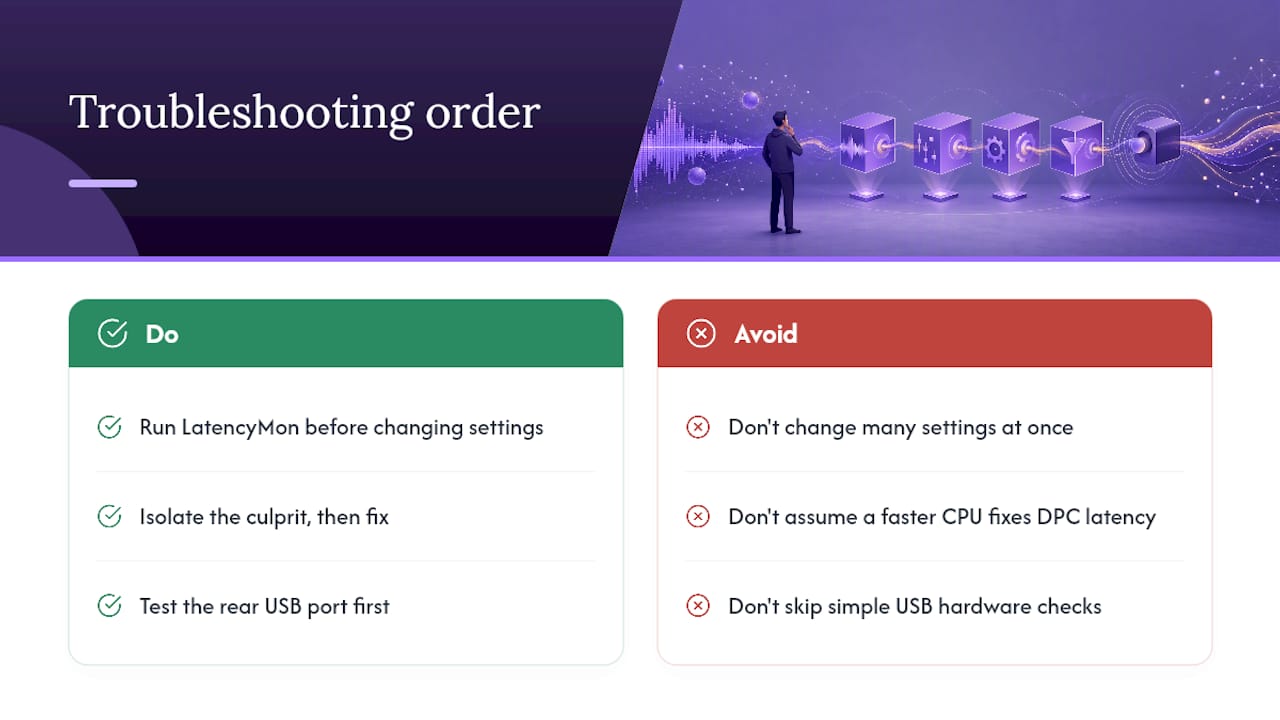
The most overrated fix in this space is buying more CPU. DPC latency is a timing problem, not a horsepower problem, and a faster processor running the same buggy USB controller driver will glitch just as often. The most underrated fix is the rear USB port test. It costs nothing, takes ten seconds, and eliminates a surprising share of reported dropouts before any software diagnostics are needed.
If you take one thing from this, run LatencyMon before you change a single setting. Isolate first, then fix. Guessing your way through six settings changes might work, but you'll never know which one mattered, and the problem will resurface the next time your setup changes.
— Kai
Sources
- LatencyMon — Resplendence
- Understanding ASIO4ALL — Slick Audio
- Audio latency and general sound issues — Puget Systems
- How to diagnose and fix high DPC latency in Windows — Wccftech
- How To Fix Audio Dropouts and DPC Latency in Windows — DAW Zone