Plugin Routing Options: A Producer's Setup Guide
Plugin Routing Options: A Producer's Setup Guide
Plugin routing options are the paths audio takes into, through, and out of a plugin: serial inserts, parallel lanes, sends and returns, multi-out channels, and sidechain inputs. If a plugin isn't giving you the outputs or channels you expect, the fix almost always lives in your DAW's plugin I/O panel or track routing settings, not in the plugin itself. What you configure there depends on the plugin's format and how your DAW exposes multi-channel audio.
TL;DR:
- Multi-out plugin support depends on the plugin format and your DAW's capabilities, with VST3, AU, and AAX offering the most flexibility.
- Proper setup requires confirming format support, creating matching tracks, exposing outputs in the DAW, and testing each channel with soloing and metering.
- Complex routing like multi-outs and parallel chains increases CPU load and risks phase issues, so frequent freezing or bouncing tracks is recommended to reduce overhead.
- Different DAWs handle routing differently: Ableton offers straightforward multi-out setup, Logic requires manual I/O creation, and Pro Tools demands pre-configured busses.
- Verify routing accuracy by soloing, phase checking, and confirming latency compensation to prevent misrouting and phase cancellation problems.
Table of Contents
- What Are the Main Types of Plugin Routing Options?
- How Do You Enable Multi-Out Plugin Routing in Your DAW?
- Which Routing Workflows Actually Get Used on Real Sessions?
- Why Are Plugin Outputs Missing and How Do You Fix Routing Issues?
- What Should You Default to for Routing, and Where Can You Learn More?
- Do Ableton, Logic, and Pro Tools Handle Routing Differently?
- What Compatibility Issues Come Up Across VST, AU, and AAX Formats?
- How Much Do CPU and System Resources Affect Complex Routing?
- How Do You Keep Track of a Complex Routing Chain?
- What Most Producers Get Wrong About Routing Complexity
- Get Routing-Ready Plugins Built for Precision Mixing
- Sources
What Are the Main Types of Plugin Routing Options?
Every routing decision starts with a question: does this signal need to move in a straight line, split into parallel copies, or share a single processor with other tracks? The five core types answer that question differently.
Serial routing (or insert routing) sends audio through one plugin, then the next, in a straight chain on a single track. It's the default for most processing: EQ into compression into saturation. Use it when each stage needs the full output of the previous one.
Parallel routing splits a signal into two or more copies that process independently, then recombine. Classic use case: New York style parallel compression, where a heavily squashed copy blends under the dry signal for punch without losing dynamics. It also works for blending a clean guitar with a distorted duplicate.
Sends and returns route a copy of a track's signal to a shared bus, typically for reverb or delay, so multiple tracks can use one processor instead of five separate instances. This saves CPU and keeps the effect sonically consistent across the mix.
Multi-out routing exposes several discrete outputs from a single plugin instance, usually a drum sampler or multi-timbral instrument, so each element (kick, snare, hi-hat) lands on its own mixer channel for dedicated processing chains that improve mix balance.
Sidechain routing splits control signal from audio signal, letting one track's level trigger processing on another, most commonly ducking a bass under a kick drum.
- Serial: default chain, one signal path
- Parallel: blend processed and dry copies
- Sends/returns: shared effect, lower CPU
- Multi-out: separate outputs per voice or element
- Sidechain: one track controls another's dynamics
Pro Tip: Before adding a parallel lane, ask if a simple wet/dry knob on the plugin itself would do the same job. Half the time it will, and you'll save a channel strip.
How Do You Enable Multi-Out Plugin Routing in Your DAW?
Getting a multi-out instrument to actually show its extra channels takes a specific sequence, and skipping a step is the most common reason producers give up and assume the plugin is broken.
- Confirm format support. Check that your plugin is VST3, AU, or AAX and that your DAW's version of that format handles multi-channel I/O. Older AAX Native instances and some VST2 holdovers cap out at stereo, even when the plugin engine itself supports more.
- Build the receiving tracks. Create the audio tracks or busses you want to receive each output, and set their channel configuration to match (stereo or mono, depending on the source).
- Open the I/O panel. In the plugin's output routing menu, or your DAW's I/O Setup or Plugin Manager, expose the additional outputs and assign each to its own mixer channel or bus.
- Verify with a test signal. Send audio into the instrument, solo each new channel individually, and watch the meters to confirm the routing landed where you expected.
That last step matters more than people give it credit for. A quick solo-and-meter check catches both a misrouted output and a DAW default that quietly reverted to stereo.
- Rescan the plugin if new outputs don't appear after a format update
- Check whether the track is set to stereo when it needs multi-mono
- Confirm the plugin instance itself, not just the track, is configured for multi-out
Many DAWs default new plugin instances to stereo-only to conserve system resources, so a missing output is rarely a bug. It's a setting waiting to be flipped.
Which Routing Workflows Actually Get Used on Real Sessions?
Routing theory is one thing. Here's what it looks like on an actual timeline.
Drum multi-out for individual processing. Route your drum sampler's kick, snare, and overhead outputs to separate channels instead of leaving everything on one stereo bus. This lets you gate the snare, saturate the kick, and leave overheads untouched, which gives cleaner separation than an all-in-one approach especially on sample-heavy productions.
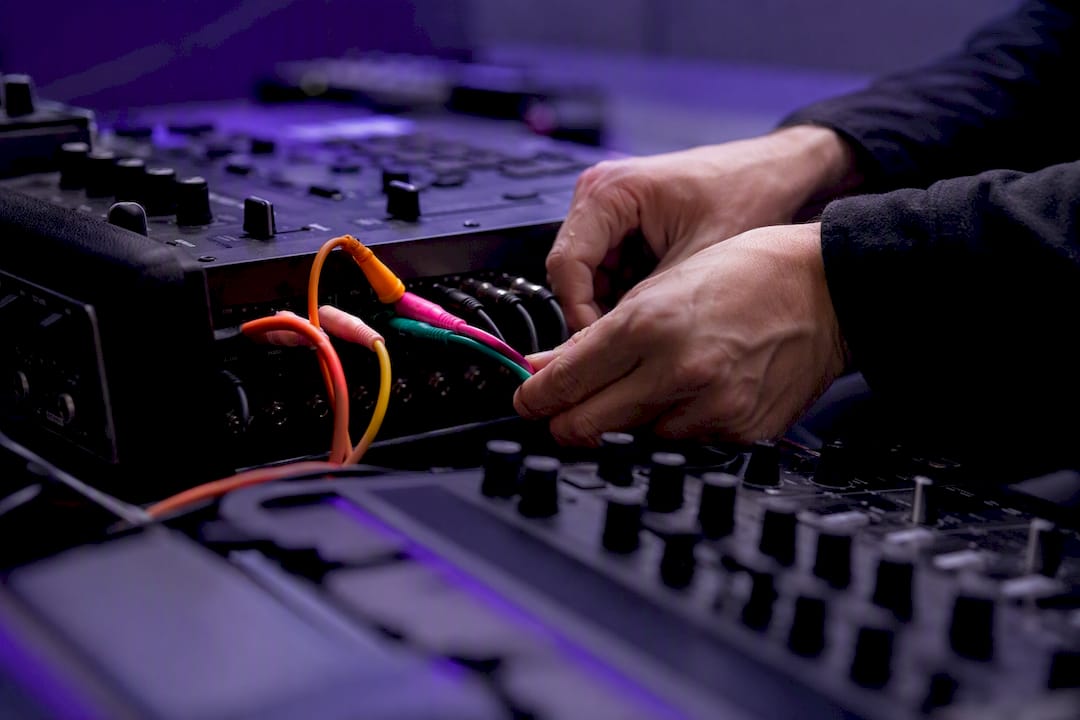
Parallel compression without phase headaches. Duplicate the track or use an internal parallel bus, hit the copy hard with compression, and blend it under the original. Keep both paths at identical sample-accurate timing; most DAWs handle this automatically, but if you're routing externally through a hardware unit, check for added latency before you trust your ears.
Sends and returns for space. Put one reverb and one delay on aux busses, then send whatever amount each track needs. This keeps your reverb tails cohesive across the mix and spares you from loading ten instances of the same plugin.
Live sound multi-channel splits. For FOH and monitor rigs, route inputs so front-of-house and monitor engineers get independent processing chains from the same source, without one affecting the other's mix.
- Keep your main mix bus routing untouched while you experiment with parallel lanes elsewhere in the session
- Label multi-out channels immediately, before you forget which output is which
Pro Tip: Treat your core signal path like a stable foundation and your experimental sends like a separate layer on top, similar to how network routing configs keep core setup distinct from runtime changes. It makes undoing a bad idea painless.
Why Are Plugin Outputs Missing and How Do You Fix Routing Issues?
When a plugin refuses to show anything but a stereo pair, run through this order before assuming it's broken: rescan the plugin in your DAW's plugin manager, switch the track's channel mode from stereo to multi-mono, and check the plugin's own output menu for a default that reset after an update.
Latency is the other recurring headache. Plugin Delay Compensation handles most timing differences automatically, but manual parallel routing or external chains can still introduce phasing if you haven't verified PDC is active on every path. Always check the reported latency value on your parallel or sidechain plugins after making changes.
Signs your routing has gotten too complex: you can't remember what feeds what, meters are lighting up on channels you didn't intend to use, and your session takes visibly longer to load. Excessive routing complexity increases CPU overhead and turns troubleshooting into guesswork.
- Solo each output individually and confirm it matches what you expect
- Do a phase check by flipping polarity on a parallel copy and listening for cancellation
- Bounce a section and listen back on a different set of speakers before committing
What Should You Default to for Routing, and Where Can You Learn More?
Start simple. A serial chain solves most mixing problems, and multi-out or parallel routing should only enter the picture when it fixes something a straight chain can't. That's not a limitation. It's just the fastest path to a finished mix.
Once you do need more complex routing, the format matters. Vector DSP's own breakdown of VST3, AU, and AAX covers which formats expose the routing flexibility you'll need for multi-out and sidechain work. For the signal path itself, the step-by-step signal flow guide walks through serial versus parallel decisions in more depth than fits here, and the bus processing guide is worth reading before you build out sends and returns on a busy session.
- Default to serial routing unless you have a specific reason not to
- Add multi-out only when per-element processing solves a real mix problem
- Check plugin format compatibility before assuming a routing feature exists
| Routing Type | Best For | Watch Out For |
|---|---|---|
| Serial | Standard channel processing | Overloading one chain with too many stages |
| Parallel | Blending processed and dry tone | Phase cancellation, added latency |
| Sends/Returns | Shared reverb, delay, CPU savings | Overly wet buildup across tracks |
| Multi-out | Drum kits, multi-timbral instruments | Format support, forgetting to label channels |
| Sidechain | Ducking, rhythmic pumping | Confusing control input with audio input |
Do Ableton, Logic, and Pro Tools Handle Routing Differently?
Yes, and the differences trip people up when they switch platforms mid-career. Ableton Live handles multi-out instruments through its own resizable output selector directly on the device, making it straightforward to add mixer tracks that receive each voice. Logic Pro leans on its Mixer's I/O assignment menus and Multi-Output instrument tracks, which work well but require you to manually create the aux channels first, unlike Ableton's more guided flow.
Pro Tracks in Pro Tools, meanwhile, ties routing tightly to its bus system. AAX plugins expose multi-channel I/O through the track's output selector, but you'll often need to build busses in the I/O Setup window before a plugin's extra outputs have anywhere to go. It's more setup work upfront, though the payoff is tighter integration with large-format mixing templates common in film and post houses.
None of these approaches is objectively better; if you're curious how they compare for workflow, see this detailed overview of Ableton vs FL Studio. They reflect different philosophies: Ableton favors quick creative routing changes mid-session, Logic sits in the middle, and Pro Tools optimizes for large, pre-planned sessions where routing gets set once and stays put. If you work across multiple DAWs, expect to relearn where the I/O menu lives every time. That's less a flaw and more a reminder that routing conventions are a DAW's fingerprint, not a universal standard.
What Compatibility Issues Come Up Across VST, AU, and AAX Formats?
Not every plugin format handles routing the same way, and this is where a lot of confusion about "broken" multi-out plugins actually originates. VST3 generally offers a more flexible routing API than older formats, including dynamic I/O configuration that lets a plugin add or remove output busses based on what the host requests.
AU (Audio Unit), used on macOS, handles multi-channel routing well in most modern hosts like Logic Pro, but third-party AU plugins vary widely in how many discrete outputs they expose, and some older AU instances simply don't support it at all.
AAX, Pro Tools' proprietary format, splits into AAX Native and AAX DSP. Native handles multi-out fine on modern Pro Tools versions, but DSP-based (HDX hardware) plugins have stricter channel limits tied to the hardware's processing capacity. If you're moving a project between a Pro Tools rig with HDX cards and a laptop running Native only, don't assume your routing will translate cleanly.
The practical takeaway: before building a session around a multi-out plugin, confirm the specific format and version you're using supports the channel count you need. A plugin can support multi-out in its VST3 build and stereo-only in its aging AU counterpart, and that's not a bug on either side. It's a format limitation baked into how each host communicates with plugins.
How Much Do CPU and System Resources Affect Complex Routing?
Every additional plugin instance, bus, and parallel lane adds to your CPU load, and routing complexity compounds that faster than most people expect. A single multi-out drum instrument feeding six separate channels, each with its own EQ and compressor, taxes your system far more than the same instrument routed to one stereo bus with a single processing chain.
Buffer size becomes the pressure valve. Lower buffer settings give you tighter monitoring latency but leave less headroom for complex routing, which is why many engineers track at a small buffer and switch to a larger one once they start building out parallel chains and multi-out processing during mixing.
Over-routing is a common and avoidable mistake: stacking parallel lanes or send chains that don't measurably change the sound just burns processing power for no audible gain. If your session starts crackling or your DAW's CPU meter creeps into the red, the fix usually isn't a faster computer. It's an audit of which routing paths are actually doing work.
Freezing or bouncing multi-out tracks once you've dialed in their processing is the standard release valve. It locks in the sound and frees the CPU overhead those extra channels were consuming, without forcing you to undo the routing decisions that got you there.
How Do You Keep Track of a Complex Routing Chain?
The more sends, busses, and multi-out instruments a session accumulates, the easier it becomes to lose track of what feeds what. Most DAWs offer some form of routing visualization, whether that's Pro Tools' I/O grid view, Ableton's send/return color coding, or Logic's Mixer showing input and output assignments side by side. Learning your DAW's specific view is worth the hour it takes.
Naming conventions do more heavy lifting than any visual tool, though. Label busses by function ("Drum Bus," "Vocal Reverb Send") rather than by number, and color-code related channels so a glance at the mixer tells you which tracks share a processing path.
- Group related channels visually, even if they're not routed to the same bus
- Rename every send and return the moment you create it, not at the end of the session
- Keep a simple text note in your session for anything routed outside the DAW itself, like outboard gear or a parallel hardware chain
A session template with your standard busses and sends already labeled and routed saves real time on every new project, and it means you're troubleshooting a familiar structure instead of reverse-engineering your own past decisions six months later.
What Most Producers Get Wrong About Routing Complexity
The instinct to build elaborate routing setups usually comes from watching a tutorial where someone's session looks like a wiring diagram, and assuming that complexity is what separates amateur mixes from professional ones. It isn't. The mixes that translate best on most systems tend to come from engineers who added a parallel lane or a multi-out chain because a specific problem demanded it, not because the option existed.
Where conventional advice falls short is treating routing options as a feature checklist to work through rather than a toolkit to reach for selectively. Multi-out routing on a drum instrument is genuinely useful when you need per-voice control. It's a waste of CPU and mental overhead when your drum bus was already sitting fine as a stereo pair.
If there's one thing worth prioritizing, it's the verification habit: soloing outputs, checking phase on parallel chains, confirming PDC is doing its job before you trust what you're hearing. That five-minute habit prevents more mix problems than any advanced routing technique fixes. Start there, and add complexity only when the simple chain genuinely runs out of options.
— Kai
Get Routing-Ready Plugins Built for Precision Mixing
Routing options only matter if the plugin on the other end responds the way you expect, with clean I/O behavior and no surprises when you switch from stereo to multi-out. Vector DSP builds its processors around that principle: real-time, low-latency DSP with signal paths designed to behave predictably whether you're running a simple serial chain or a multi-lane parallel setup.
Vector DSP's plugin lineup, including ToneLab's multi-lane parallel architecture with per-lane EQ targeting, is built in VST3, AU, and AAX so the routing flexibility described throughout this guide is available regardless of which DAW you're running. If you're a producer who wants parallel processing without stacking plugin instances and hoping the phase lines up, that per-lane targeting does the routing work internally instead of leaving it to guesswork.
Download a free demo from Vector DSP and load it into your current session to see how it handles your existing routing setup before you commit to a license.
Sources
- Using multi-out plug-ins — Ableton Help
- On delay compensation: recommendations for routing — Ardour discourse
- 10 bad audio habits to avoid — Videomaker