VST3 plugins signal chain setup: a complete guide
VST3 plugins signal chain setup: a complete guide

Most producers have been there: you load a handful of plugins, press play, and the mix sounds muddier than expected. Nothing is technically wrong, but something is clearly off. A precise vst3 plugins signal chain setup is usually the difference between a mix that breathes and one that fights itself at every stage. Getting the signal flow right is not about using more plugins. It is about understanding exactly what each plugin receives, what it does to the signal, and what it passes downstream. This guide covers the foundational concepts, preparation steps, execution, and verification you need to build chains that behave predictably every time.
Table of Contents
-
Verifying signal chain performance and avoiding common mistakes
-
Why mastering your VST3 signal chain beats simply relying on default routing
Key Takeaways
| Point | Details |
|---|---|
| Understand signal flow | Differentiate insert (series) effects from send (parallel) effects for precise control over your sound. |
| Use plugin chains wisely | Leverage hosts like StudioRack to manage complex VST3 effect chains efficiently inside one DAW insert. |
| Gain stage correctly | Control input levels into plugins to ensure predictable processing behavior and tonal consistency. |
| Avoid double dry mixing | Place time-based effects on sends at 100% wet and blend via return faders to maintain clean signal balance. |
| Organize and verify | Set up routing intentionally, check plugin placement, and troubleshoot signal chain issues proactively. |
Understanding signal flow and plugin roles in VST3 chains
Signal flow is the path audio takes from source to output. In a DAW, every plugin you place in that path either transforms the signal directly or works on a copy of it. That distinction matters more than most producers realize when building an optimal signal chain.
Insert effects sit in series on the track. The full signal passes through each plugin in order, and every plugin hears the output of the one before it. EQ, compression, saturation, transient shapers — these belong here. Each one shapes the signal before handing it off.
Send and return effects work differently. The original track stays completely dry. A copy of the signal is routed to a return track, processed there, and blended back into the mix via the return fader and send level. As parallel time-based effects like reverb and delay work best this way, the dry signal stays intact and you control the wet blend independently without touching the source.
Here is why this matters in practice:
-
Series inserts give you direct, cumulative control over tone and dynamics. Order matters because each plugin sees the output of the previous one.
-
Parallel sends preserve dry signal integrity. You are not passing the dry signal through a reverb plugin and hoping the mix knob saves you.
-
Pre-fader sends capture signal before the channel fader, so reverb tails do not disappear when you pull the fader down. Post-fader sends follow the fader, which is usually what you want for mix-level consistency.
-
Parallel compression (a specific use of send routing) lets you blend heavy compression with the uncompressed signal, preserving transients while adding density.
Pro Tip: If you are using a reverb plugin directly on an insert with a 50% wet mix, you are mixing dry signal twice: once from the track and once from inside the plugin. That creates level masking and makes wet/dry control unpredictable. Always use returns for time-based effects.
Having set the stage with fundamental concepts, now let’s prepare your environment and tools to build efficient VST3 plugin chains.
Preparing your DAW and tools for VST3 plugin chains
Before you place a single plugin, your session environment needs to support the signal chain you are building. Skipping this preparation is the most common reason chains behave inconsistently.
Step-by-step DAW preparation:
-
Scan and organize your VST3 plugins. Confirm your DAW has scanned your plugin folders and that all VST3 plugins appear in the correct category. Mislabeled or duplicate entries cause confusion when building chains.
-
Set your input gain before inserts. As input levels affect level-dependent processors, gain staging starts before the first plugin. Aim for peaks around -18 dBFS on audio tracks before any processing begins.
-
Create a session template. Build a template with pre-routed buses, color-coded tracks, and labeled send/return pairs. This removes setup time from every new session.
-
Set up dedicated return tracks. Create at least two return tracks (one for reverb, one for delay) and label them clearly. Load 100% wet plugins on each.
-
Color code by function. Use one color for insert-heavy tracks, another for bus channels, and a third for return tracks. Visual clarity prevents routing errors.
Plugin hosting tools for VST3 chaining:
| Tool | VST3 support | Chain capacity | Key feature |
|---|---|---|---|
| Waves StudioRack v14 | Yes (mixed chains) | Up to 8 plugins | Save and recall full chains in one insert |
| DDMF Metaplugin | Yes | Unlimited | Flexible serial and parallel routing |
| Blue Cat’s PatchWork | Yes | Up to 64 plugins | Parallel and series routing in one slot |
| Native DAW insert chain | Yes | DAW-dependent | No extra tool required |
StudioRack supports mixed VST3 chains from multiple manufacturers inside a single insert slot, which is particularly useful in DAWs with limited insert counts per track.
Pro Tip: Build your session template once with all return tracks, buses, and color coding in place. Opening a pre-organized session removes the temptation to skip gain staging and routing setup when you are in a creative flow.
With tools in place and your DAW ready, let’s dive into executing the precise VST3 plugin chain setup.
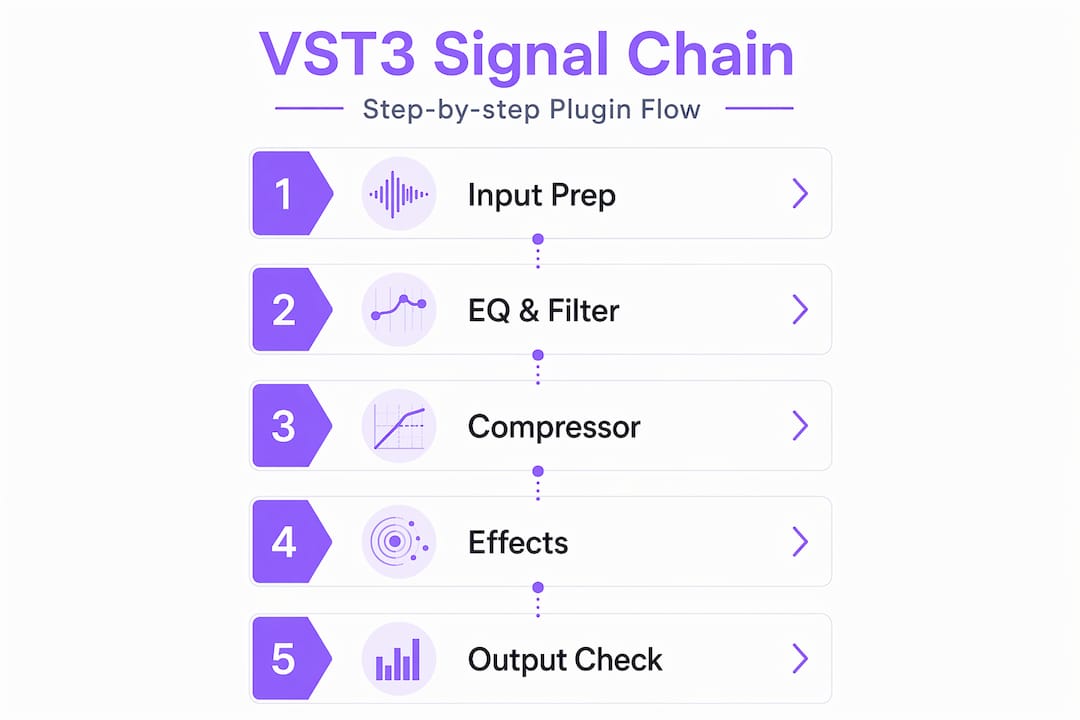
Step-by-step setup of your VST3 plugin signal chain
Now you are ready to build. The goal is a chain where every plugin receives a signal at the right level, in the right order, doing the right job.
Building the insert chain:
-
Start with corrective EQ. High-pass unnecessary low-end, cut problem frequencies. The signal entering compression should already be shaped.
-
Place compression next. Compression responds to the frequency content it receives. A pre-EQ’d signal gives the compressor a cleaner picture to work with.
-
Add saturation or harmonic processing. Saturation after compression adds character without fighting the dynamics you just set.
-
Apply creative EQ if needed. A second EQ after saturation can shape the final tonal character of the processed signal.
-
Use a gain trim at the end. Match the output level of the chain to the input level to maintain consistent gain through the mix.
Setting up sends and returns:
-
Route sends from the channel to your pre-built return tracks.
-
Confirm the reverb and delay plugins on those returns are set to 100% wet on returns so the dry signal does not mix inside the plugin.
-
Adjust the send level on the source track to control how much signal feeds the return.
-
Adjust the return fader to set the final wet level in the mix.
Typical plugin chain order and purpose:
| Position | Plugin type | Purpose |
|---|---|---|
| 1 | High-pass / corrective EQ | Remove unwanted frequencies before processing |
| 2 | Compressor | Control dynamics on a shaped signal |
| 3 | Saturation / harmonic exciter | Add character and density |
| 4 | Creative / tonal EQ | Final frequency shaping |
| 5 | Gain trim / output limiter | Level matching and clip protection |
| Return 1 | Reverb (100% wet) | Space and depth via parallel blend |
| Return 2 | Delay (100% wet) | Rhythmic depth via parallel blend |
As input levels affect plugin behavior before any processing begins, output trims cannot undo tonal changes already introduced at the plugin’s input stage.

Pro Tip: After building your chain, bypass the entire insert chain and compare the input level to the output level. They should be close. A big jump in perceived loudness after processing is a sign of gain staging drift, not better sound.
Having built the chain, next we will verify and troubleshoot to ensure your signal chain performs perfectly.
Verifying signal chain performance and avoiding common mistakes
A well-built chain should be easy to audit. If something sounds wrong, you need to know exactly where in the chain to look.
Common symptoms and what they indicate:
-
No audio output: Check that instrument plugins are on instrument tracks and effects are on audio effect inserts. As misplacement causes no audio or wrong behavior, this is often mistaken for a plugin malfunction.
-
Distorted or clipping audio: Gain staging issue. Check levels entering the first insert and at each plugin output.
-
Reverb sounds phasey or too dense: Likely a double-dry mix problem. The reverb plugin may be on an insert with less than 100% wet, or the same reverb is running on both insert and return.
-
Compression behaving unpredictably: The signal entering the compressor is too hot or too inconsistent. Check upstream gain.
-
Plugin not responding as expected: Confirm the plugin type matches the track type. A MIDI instrument plugin will not process audio.
Double-mixing the dry signal breaks your intended wet/dry control and creates level masking that no amount of fader adjustment will fully fix.
Troubleshooting steps:
-
Solo the track and bypass all inserts. Confirm clean audio passes through.
-
Re-enable inserts one at a time. Identify which plugin introduces the problem.
-
Solo the return track independently. Confirm it outputs only wet signal.
-
Check send levels and return faders separately to confirm independent control.
-
Use your DAW’s gain meter at plugin input and output to verify level consistency.
Pro Tip: Use the mute button on your return tracks to confirm they are contributing what you expect. A reverb return that makes no audible difference when muted is either too quiet or routing incorrectly.
Why mastering your VST3 signal chain beats simply relying on default routing
Default DAW routing is designed for accessibility, not precision. It gives you a row of insert slots and a fader, and most producers never look beyond that. The result is chains that technically work but lack the architectural control that separates a professional mix from an amateur one.
The real issue is that linear insert chains treat every effect as a transformation of the previous output. That works for EQ and compression, where you want cumulative shaping. But it fails completely for time-based effects. A reverb in series on an insert is not just a reverb. It is a reverb mixed with the dry signal inside the plugin, then that combined signal continues through every downstream plugin. You lose independent wet/dry control, and the dry signal gets processed twice.
As bus and send architecture changes what processing order means, parallel sends allow independent wet/dry control without unwanted compression or tonal coloring from downstream inserts.
Hosting complex chains inside a single insert using tools like StudioRack changes the workflow entirely. You can build a chain with internal parallel routing, save it as a preset, and recall it in one click. That is not just convenience. It means your signal chain is a designed, repeatable system rather than a session-by-session improvisation.
Gain staging is the discipline most producers underestimate until they hear the difference. A compressor receiving a signal 6 dB too hot behaves completely differently than the same compressor at the intended input level. The tonal character changes. The attack and release feel different. You are not hearing the plugin. You are hearing the plugin at the wrong level.
The producers who get the most out of their plugin collections are not the ones with the most plugins. They are the ones who treat the signal chain as an architecture: inputs, transformations, parallel paths, and outputs, each with a defined role and a controlled level. That mindset is what makes a VST3 plugins signal chain setup genuinely powerful.
Enhance your VST3 workflows with Vector DSP
Building a precise signal chain is only as good as the tools you build it with. Vector DSP designs professional-grade VST3 plugins built around the same architectural principles covered in this guide: controlled gain behavior, predictable processing at every input level, and real-time performance that holds up inside complex chains.
Whether you are building insert chains for dynamics and tone shaping or setting up parallel return paths for spatial effects, Vector DSP plugins and tools are designed to integrate cleanly into the signal flow setups described here. Every plugin is built to VST3 standards, with low-latency processing and consistent behavior across DAWs. If you are serious about high-precision audio processing, exploring what Vector DSP offers is a natural next step after getting your chain architecture right.
Pro Tip: Use Vector DSP plugins at the gain-staged positions in your chain where predictable, level-consistent behavior matters most, such as compression and harmonic processing stages.
Frequently asked questions
What is the difference between insert and send effects in VST3 chains?
Insert effects process the entire signal in series on the track, while send effects run in parallel on a copy of the signal, letting you blend wet and dry independently. As parallel time-based effects like reverb work best on returns, the original track stays completely dry.
Why is gain staging important before VST3 plugins?
Gain staging ensures the signal enters each plugin at intended levels, which is key for level-dependent processors to behave predictably and maintain tonal consistency. As gain staging begins before inserts, predictable processing in level-dependent plugins like compression and saturation depends on it.
Can I host multiple VST3 plugins in one insert?
Yes, tools like Waves StudioRack allow building mixed chains inside a single DAW insert, saving and recalling complex chains efficiently. StudioRack supports mixed VST3 chains from multiple manufacturers inside one slot.
How do I avoid double-mixing the dry signal with reverb?
Put the reverb on a return track set to 100% wet and blend it with send levels, so the dry signal remains clean and reverb does not mix dry inside the plugin. Setting the reverb to 100% wet on the return and blending with send levels is the standard approach.
What causes VST3 plugins to show no audio or malfunction?
Loading instrument plugins on audio effect tracks or placing effects on instrument tracks misroutes the signal, causing no sound or unexpected behavior. As misplacement leads to no audio or wrong behavior, always confirm the plugin type matches the track type before troubleshooting further.