Engineers: 13 Step Fix for Plugin Delay Compensation With Dev Notes
Engineers: 13 Step Fix for Plugin Delay Compensation With Dev Notes
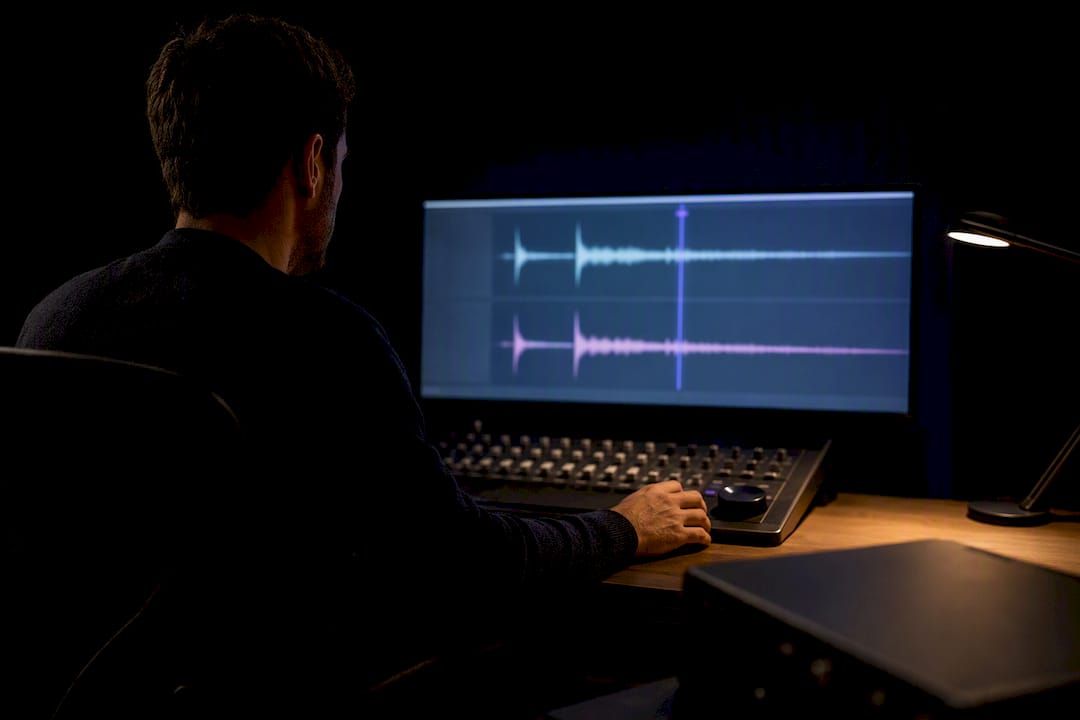
If tracks sound out of time, bypass or freeze the latency-heavy plugins and switch on low-latency or record mode first. That stops most timing errors immediately. If the drift persists, check whether the offending plugin reports its latency accurately, verify your DAW's delay compensation is actually engaged, and use manual track delay only as a temporary patch while you gather logs for a support ticket.
TL;DR:
- Plugin latency issues often stem from linear-phase EQs, look-ahead compressors, convolution reverbs, or oversampling effects delaying signals beyond DAW compensation.
- Bypassing or freezing latency-heavy plugins during tracking and moving complex processing to the mix stage helps maintain timing accuracy.
- Accurate measurement with null tests or sample-offset recordings is essential, as reported plugin latency may not reflect true audible delay.
- DAW-specific quirks like first-playback lag or routing mismatches can cause compensation failures, requiring session restarts or routing adjustments.
- Developers should report plugin latency during initialize routines, and manual track delay fixes are only reliable when based on precise, tested offsets.
Table of Contents
- Symptoms and When Plugin Delay Compensation Problems Show Up
- What Delay Compensation Actually Does and Why It Breaks
- A Prioritized Checklist for Fixing Plugin Delay Issues
- How to Measure Plugin Latency Accurately
- DAW Quirks That Cause Compensation Failures
- Developer Notes: Reporting Latency the Right Way
- Where Manual Fixes Are Fine, and Where They're Not
- Sources
- FAQ
Symptoms and When Plugin Delay Compensation Problems Show Up
Plugin delay compensation issues rarely announce themselves clearly. They show up as small, maddening inconsistencies: a snare that lands two milliseconds early, a vocal comp that drifts after you bounce it, a guitar double that felt tight during tracking but sounds smeared once you export. Recognizing the pattern is the first real troubleshooting step, because these symptoms map directly to specific causes.
Here's what plugin delay compensation problems typically look like in a session:
- The first transient of a recorded take arrives early or late compared to what you heard while tracking.
- Audio recorded through a latency-heavy plugin chain lands shifted from the grid once you stop and play back.
- An offline bounce trims off the very start of a note, or the render doesn't match what you heard in real time.
- Timing goes inconsistent after you jump the playhead, loop back, or restart playback mid-session.
- Two tracks that were perfectly aligned before you added a plugin suddenly sit slightly apart.
Most of these trace back to a small set of usual suspects. Linear-phase EQ is one of the biggest offenders because it deliberately delays the signal to avoid phase distortion, and that delay can run into dozens of milliseconds depending on the filter settings. Look-ahead compressors and limiters work the same way. They peek at upcoming samples to react before a transient hits, which means they must buffer, and that buffer is latency your DAW has to account for. Convolution reverbs add latency from processing the impulse response, and oversampling plugins introduce delay from the extra up/down sampling stages, even when the actual effect sounds instant.
Sidechain and bus routing complicate things further. When a sidechain input travels through a different processing path than the main signal, the two can end up on different latency footings, and your host may not compensate the sidechain leg correctly. That's a classic setup for phase cancellation and rhythmic wobble that has nothing to do with your performance and everything to do with routing.
Before you chase any of this on your real mix, reproduce the problem in a stripped-down test project. Create a two-track session: an audio file on one track, the suspect plugin on another, and a shared click or transient reference. Play it, bounce it, and see if the offset shows up in isolation. If it does, you've confirmed it's plugin-driven and not a performance or recording artifact.
From there, isolate systematically. Bypass the suspect plugin and check if the timing snaps back into place. If it does, that plugin is either mis-reporting latency or introducing more delay than your DAW is compensating for. Toggle your DAW's delay compensation setting off and back on while watching the same test project. If disabling it makes the drift worse rather than better, delay compensation is working as intended and something upstream, like buffer size or a routing quirk, is the actual culprit.
Pro Tip: Keep a permanent "latency test" project template on your drive with a click track and a single audio hit. When something feels off in a real session, drop the suspect plugin into that template instead of debugging live on your mix. It takes thirty seconds and removes every variable except the plugin itself.
The pattern that matters most for diagnosis is timing: does the problem appear the moment you add the plugin, only after you bounce, or only after the transport has looped a few times? Each of those points to a different failure mode, which the next section breaks down.
What Delay Compensation Actually Does and Why It Breaks
Delay compensation, often abbreviated PDC, works on a simple principle: your DAW asks every plugin how much latency it introduces, then delays every other track in the session to match the single slowest one. This keeps everything locked in sync. The cost is that your total round-trip latency during recording or monitoring goes up, sometimes by a lot, because the whole session now waits on its most delayed component.
That trade-off is baked into the design. A Universal Audio support article on session latency describes exactly this mechanism: compensation keeps tracks aligned by pushing everything else to match the worst offender, which is why adding one heavy plugin to a single track can make an entire session feel sluggish to play through, even on tracks that carry no processing at all.
The processing types that generate this latency in the first place fall into a fairly short, predictable list. Linear-phase EQs delay the signal to keep phase relationships flat across the frequency spectrum, and the steeper the filter, the more latency it costs. Convolution reverbs and cabinet simulators need time to run the input against an impulse response, so their latency scales with the length and resolution of that impulse. Oversampling plugins, common in saturation and distortion processors, upsample the signal internally to reduce aliasing, then downsample back, and that round trip adds a small but real delay even on relatively lightweight effects. Look-ahead dynamics processors are the most aggressive latency source of the bunch, because they need to see audio before it arrives at the output in order to react to it in time. A breakdown of how plugin latency affects mixing groups these same categories together and treats look-ahead and linear-phase tools specifically as latency sources that need deliberate handling rather than casual use.
Sample library instruments introduce a related but distinct wrinkle. Some libraries report a fixed latency value that doesn't quite match the actual attack timing of the samples they're triggering, especially with round-robin or legato patches that have their own internal timing quirks. The DAW compensates based on the reported number, not the real audible attack, so you can end up with a track that measures correctly on paper but still feels a fraction off compared to everything around it.
Where this actually breaks down is in how plugins report their latency, not in the compensation math itself, which is straightforward arithmetic. A DAW can only compensate for a delay it knows about. Several documented failure modes prevent that from happening cleanly.
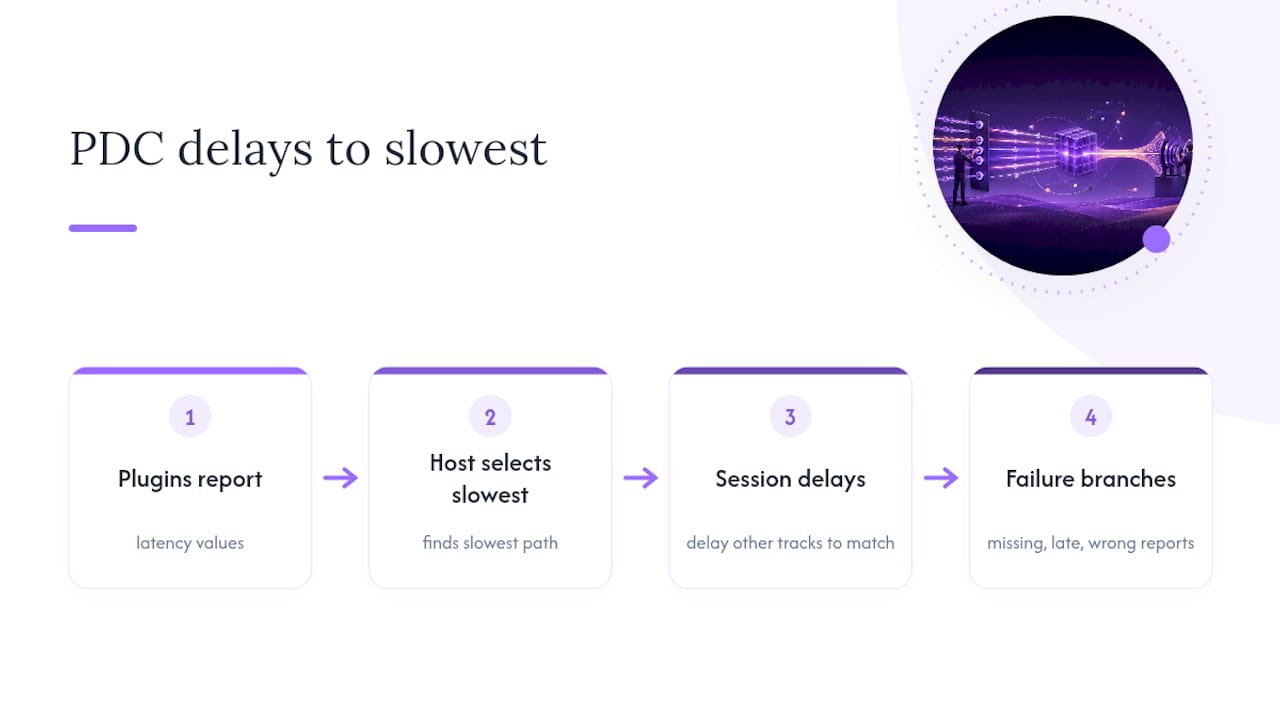
The first is plugins that simply don't report latency at all, or report it incorrectly. A forum thread on delay compensation behavior across different DAWs lays out a recurring complaint: certain plugins either misreport their latency value or update it only after processing has already started, which forces the host to guess wrong on the first pass through the session. That's a structural problem, not a settings mistake on your end.
The second failure mode is timing of the report itself. Some plugins only know their true latency once they've started processing audio, because the value depends on an internal mode, a sample rate calculation, or a lookahead buffer that only initializes once real audio hits it. If the host queries latency before that initialization completes, it gets a stale or default number, and the compensation calculated from that number is wrong until the plugin updates its report and the host recalculates.
A third and more subtle failure mode shows up in how hosts manage idle plugins. Some hosts suspend a plugin's processing when its input is silent, as a CPU-saving measure, and only wake it up once audio actually arrives. A documented case in a plugin developer's bug report shows exactly this: the host polled latency only after the plugin's first real processing cycle, meaning the correct latency value arrived one step too late to be useful for that pass. The fix required the plugin to report a fixed latency during initialization rather than waiting for live audio to confirm it.
This is also why render and playback can disagree. Real-time playback runs through the buffer and compensation logic live, sample by sample, with whatever latency values were known at that moment. Offline bounce often runs faster than real time and can process the entire chain with the plugin's fully settled latency value already known upfront. The two paths can genuinely produce different results, which explains why a bounce sometimes trims a transient that sounded fine during playback, or why a mix that felt tight on the way through the desk lands slightly different once rendered to a file.
A Prioritized Checklist for Fixing Plugin Delay Issues
Work through this in order. Each step either fixes the problem outright or narrows down where to look next, so don't skip ahead even if you're confident you know the cause.
- Check your buffer size first. A larger buffer increases overall latency but can mask compensation errors; a smaller buffer exposes them faster. Try both extremes in your test project to see if the symptom changes.
- Toggle delay compensation off and back on, watching the same reproducible test case. This tells you whether the DAW's compensation logic is even active, versus a plugin reporting bad data into a system that's otherwise working correctly.
- Strip the session down to a minimal project: one audio track, one plugin, one reference click. If the drift disappears without the plugin, you've confirmed the plugin, not your session structure, is the cause.
- Read the actual latency numbers. Most hosts show plugin latency in a mixer strip tooltip, a plugin info window, or a dedicated performance panel. Compare the reported number against what you're actually hearing using a null test (more on that in the next section).
- Record a click track through the suspect plugin chain and measure the sample offset against an unprocessed reference. This gives you a hard number instead of a feeling, which matters both for your own fix and for any bug report you eventually file.
- Switch on low-latency or record-safe mode if your plugin offers it. Many dynamics and EQ plugins ship a dedicated low-latency mode specifically for tracking, trading some processing quality for a near-zero delay footprint.
- Bypass or freeze latency-heavy plugins during tracking, then re-enable them at the mix stage. Ableton's own guidance on reducing latency recommends this directly: freeze or flatten tracks that carry latency-inducing devices rather than fighting the compensation math live.
- Move linear-phase EQ, convolution, and look-ahead processing to the mix or master stage. None of these belong in a tracking chain where timing accuracy matters more than tonal polish.
- Use manual track delay as a last resort, nudging the offending track by the measured sample offset from step 5. This is a patch, not a fix, and it will need to be reapplied if the plugin's behavior changes on a session reload.
- Update the plugin and your DAW. Latency-reporting bugs are common enough that vendors patch them regularly, and a version mismatch between plugin and host is a frequent, boring, entirely fixable cause.
- Force a full latency refresh by closing and reopening the project, or by removing and re-inserting the plugin. Some hosts only recalculate compensation on project load, not on every parameter change.
- Disable plugin auto-suspend if your DAW offers that option. As covered in the previous section, some hosts idle silent plugins and miss the correct latency value on the first processing cycle; forcing the plugin to stay active avoids that trap entirely.
- Test your offline render workflow separately from live playback. Freeze or flatten the latency-heavy tracks before bouncing, rather than relying on the render engine to compensate on the fly.
Pro Tip: When you're stuck between "is this the plugin or is this my session," always test in a fresh, empty project before touching anything else. A surprising number of plugin delay compensation issues turn out to be leftover automation or an old freeze file interacting badly with a new plugin version, not the plugin's latency reporting at all.
If none of that resolves it, you're dealing with a genuine plugin or host bug, and the fix now depends on someone else's code. Build a bug report that a developer can actually act on: a minimal project with the exact plugin and version, the DAW name and build number, the buffer size and sample rate, a written step list to reproduce the issue, and the specific latency numbers you measured in step 5. A vague "it feels off" ticket gets ignored. A project file with a documented sample offset and version numbers gets fixed.
How to Measure Plugin Latency Accurately
Guessing at timing problems by ear gets you close, but sample-accurate measurement is what actually resolves plugin delay compensation issues and what a developer needs to act on your bug report. Start with what your DAW already shows you: most hosts display a plugin's reported latency directly in a mixer channel tooltip, a dedicated "Plugin Delay Compensation" info panel, or a performance/CPU meter view that lists per-track latency contributions. That number is what the host thinks the plugin costs. Whether it's true is a separate question.
The most reliable way to check is a null test. Record a signal, duplicate it, run one copy through the suspect plugin bypassed and the other active, invert the phase of one, and sum them. If the plugin introduces no unexpected timing error, the two should cancel to near silence once you account for the plugin's own reported latency offset. Any leftover signal that isn't just tonal difference from the processing itself points to a timing mismatch the host isn't compensating for.
A sample-precision loopback recording works well too. Send a click or a sharp transient out of your interface, loop it back into an input, run it through the plugin chain, and record the result. Measure the sample offset between the original click position and the recorded hit using your DAW's own zoom and sample-ruler view. That gives you a concrete number, not a feeling, and it's the exact figure worth including in any support ticket.
- Screenshot the plugin's reported latency value from the host's info window.
- Record a short video showing the audible drift during playback, not just the waveform.
- Export the minimal test project itself so a developer can open it and see the problem firsthand.
- Note the sample rate and buffer size used during the test, since latency numbers are meaningless without that context.
One structural fact worth remembering here: a documented GitHub issue from a plugin's own development team traces a real case where the host only received the correct latency value after the plugin had already run through its first processing cycle. That single detail explains a huge share of "it's wrong on the first playback but fine after that" reports, and it's exactly the kind of thing you can only catch by checking logs and traces rather than just listening.
DAW Quirks That Cause Compensation Failures
Every major host has its own personality when it comes to delay compensation, and a fix that works in one DAW can do nothing in another. Knowing your host's specific quirks saves hours of chasing a problem that's actually a known, documented behavior.
The most common quirk across multiple hosts is what's sometimes called first-playback lag: delay compensation calculates correctly, but only after the transport has run through the session once. The first pass sounds off, and every pass after that is fine. A forum thread documenting this behavior in FL Studio describes users hitting exactly this pattern, along with workarounds like restarting playback from a marker slightly before the section they're checking, rather than trusting the very first pass through a section.
- Restart playback from a point a few bars earlier than the section you're actually evaluating, so the first-pass artifact resolves before you reach the part that matters.
- If your host supports it, use a "prime" pass: play through the whole session once after loading, purely to let compensation settle, before doing any critical listening.
- Toggling a plugin off and back on can force a host to re-poll its latency value immediately, which sometimes fixes stale compensation faster than waiting for a natural playback cycle.
Sidechain and bus routing create a second category of quirks. When a sidechain send travels through a separate signal path from the main input, particularly across an aux bus or a parallel routing setup, some hosts fail to apply the same compensation to both paths. That mismatch shows up as a subtle rhythmic smear on anything gated or ducked by the sidechain, and it's easy to misdiagnose as a performance issue rather than a routing one. Preferring dedicated aux inserts over creative bus-within-bus routing, and keeping sidechain paths as short and simple as possible, avoids most of these feedback-adjacent problems before they start.
Offline rendering introduces its own set of edge cases. Because a bounce can process faster than real time and with fully settled latency values, it sometimes produces a cleaner result than live playback, and sometimes a worse one, depending on how your specific host handles the transition between real-time and offline engines. Freezing or flattening any latency-heavy track before you bounce removes that uncertainty entirely, since a frozen track is just rendered audio with no live plugin processing left for the render engine to negotiate. Leaving a small amount of guard space, a bar or two of silence, at the head of a bounce also protects against any residual attack trimming from a plugin that hasn't fully settled by the time the render starts.
A handful of host toggles are worth knowing by name, even if your specific DAW labels them slightly differently: Constrain Delay Compensation (which caps how much total delay the host will apply, useful for keeping monitoring latency sane at the cost of perfect sync on the heaviest plugins), Compensate Automations (which shifts automation timing to match the compensated audio rather than the raw timeline), Low Latency Recording or record-safe mode (which temporarily disables or reduces compensation on record-armed tracks), and disabling plugin auto-suspend (which stops the host from idling a plugin during silence, avoiding the stale-latency problem covered earlier).
Developer Notes: Reporting Latency the Right Way
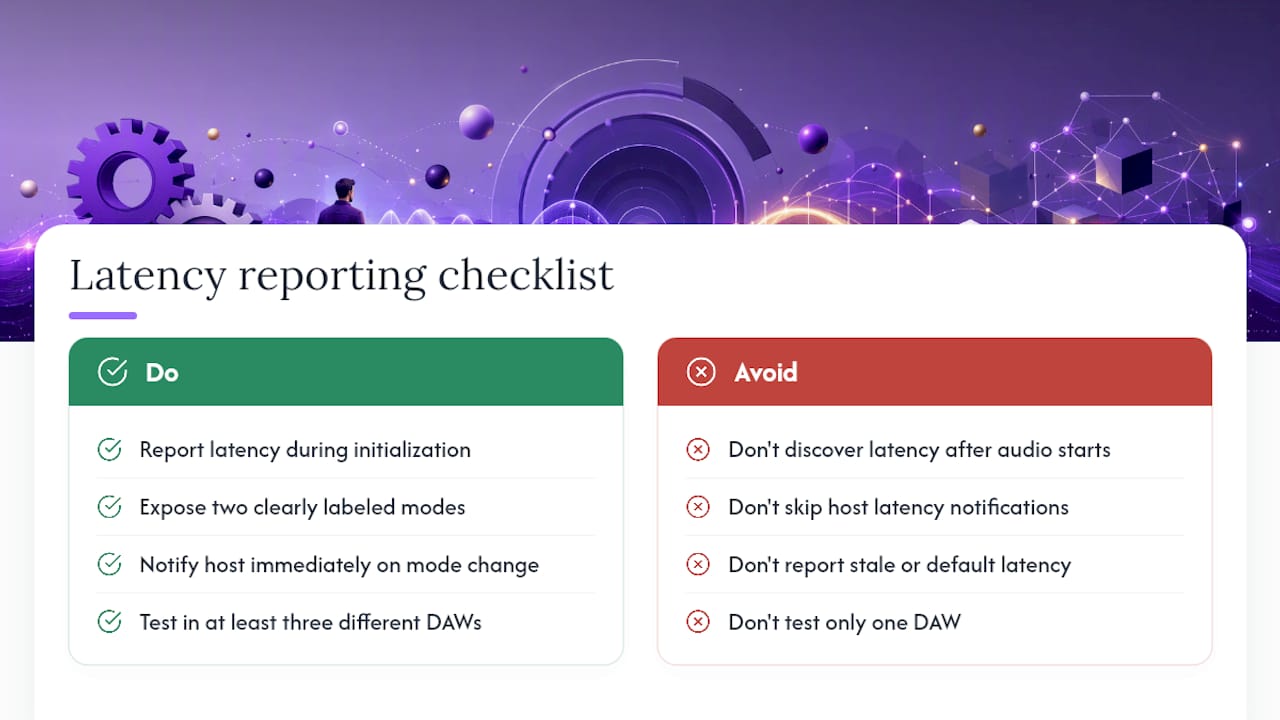
Plugin delay compensation issues are just as often a developer-side bug as a user-side setting, and the fix usually comes down to when and how a plugin reports its own latency to the host. The JUCE developer forum's guidance on reporting plugin latency is direct on this: latency should be reported during prepareToPlay, or the equivalent initialization callback in whatever framework you're building against, not discovered lazily once real audio starts flowing through process(). A host that queries latency before your plugin has committed to a final value gets a stale or default number, and every downstream compensation calculation inherits that error.
Dynamic latency, where a plugin's delay changes based on a user-selected mode like switching between a fast and a lookahead algorithm, needs its own explicit handling. The safe pattern is to expose two clearly labeled modes rather than silently varying latency in the background, and to fire a proper host notification, VST3's restartComponent with the latency-changed flag is the standard mechanism, the instant that mode switches. Skipping that notification is exactly how a plugin ends up correct in isolation but wrong inside a real session, because the host never learns the value changed until something forces a recalculation.
A plugin that reports a fixed latency at initialization and updates the host immediately on any mode change will almost never trigger a delay compensation bug. Nearly every documented failure case traces back to reporting latency too late, too quietly, or not at all.
Pro Tip: If you're building or evaluating a plugin for cross-host reliability, test it in at least three DAWs with genuinely different compensation engines, not just three installs of the same underlying architecture. A latency-reporting bug that never surfaces in one host can be the very first thing a user notices in another.
Vector-dsp's own engineering approach starts from this same principle: designing lookahead and low-latency plugin modes around explicit, host-notified latency values rather than values a host has to guess at. A broader look at how delay compensation works across DAWs covers the mechanism in more depth for engineers who want the full technical picture beyond what a single plugin's documentation usually offers.
Where Manual Fixes Are Fine, and Where They're Not
Here's the rule I'd give any engineer dealing with plugin delay compensation issues: look-ahead and linear-phase processing have no business in a tracking chain. Save them for mix and master, where a few milliseconds of latency costs you nothing because nobody's performing against it in real time. That single habit prevents more timing headaches than any troubleshooting checklist.
Manual track delay is a legitimate tool, not a crutch to be embarrassed about, but only when you treat it as a measured correction rather than a guess. If you've null-tested the offset and know it's consistently four samples at a given buffer size, nudging the track is a fine permanent fix. If you're eyeballing a waveform and dragging until it "looks right," you're building a session that will drift again the moment a plugin version or buffer size changes.
The bigger habit worth building is documentation. When you hit a genuine plugin or host bug, a minimal reproducible project with exact version numbers does more for the whole community than a forum complaint. Vendors fix what they can reproduce. Everyone benefits when engineers file it that way instead of quietly working around it forever.
— Kai
Sources
Vendor documentation is the first stop for any plugin delay compensation issue, since host behavior varies enough between DAWs that generic advice only gets you so far. Universal Audio's explanation of session latency covers the core compensation mechanism clearly, and Ableton's own latency-reduction article gives specific, actionable freeze and flatten guidance straight from the vendor.
For host-specific quirks, forum threads tend to surface real-world edge cases faster than official documentation does. The FL Studio forum discussion on delay compensation behavior documents the first-playback lag pattern in detail, and the VI-CONTROL thread on delay compensation across different DAWs is a useful read for anyone comparing how different hosts handle the same underlying problem.
Developers troubleshooting their own plugins should start with the JUCE forum thread on reporting plugin latency and the LSP Plugins GitHub issue on late latency reporting, which shows a real, documented case of a host reading a plugin's latency one processing cycle too late.
For readers thinking about how latency alignment plays out beyond the mixing desk, a technical guide to delay alignment in live sound systems covers the same underlying timing principles applied to physical speaker placement, which is a useful parallel for understanding why compensation math matters at all. If you're weighing when heavy processing like mastering-grade plugins belongs in your workflow versus when it should wait, this guide to AI mastering workflows covers the broader case for deferring intensive processing to the final stage of a project, the same principle that keeps look-ahead and linear-phase tools out of your tracking chain.
Vector-dsp builds its plugins around the same latency-reporting discipline covered in this guide, treating explicit host notification as a baseline requirement rather than an afterthought. If you're evaluating tools for a low-latency workflow, Vector-dsp's plugin lineup is worth a look, with free demo versions available so you can test compensation behavior in your own sessions before buying a license.
- How to reduce latency – Ableton
- Delay Compensation for Any DAW question | VI-CONTROL
- Plugin Latency is reported to the Host one step too late
FAQ
How Do I Fix Latency on Plugins?
Bypass or freeze the latency-heavy plugin during tracking, switch to a low-latency mode if the plugin offers one, and move linear-phase or look-ahead processing to the mix stage. If the drift persists after that, measure the actual sample offset with a null test and check whether the plugin is reporting its latency correctly to the host.
How Do I Adjust Plugin Delay Compensation in FL Studio?
FL Studio calculates delay compensation automatically based on each plugin's reported latency, but it can lag behind on the very first playback pass after loading a session. Restart playback or toggle the plugin off and back on to force a fresh latency read, and check the mixer's latency display if the drift continues.
Is an audio delay of this magnitude noticeable?
Yes. Even a small delay during monitoring or recording can throw off timing enough to disrupt a performance and make it feel like the performer is playing slightly behind the beat.
How Can I Fix Latency Issues in FL Studio Specifically?
Start with buffer size, since a smaller ASIO or DirectSound buffer reduces round-trip latency at the cost of more CPU strain. Then check which plugins are driving up total session latency in the mixer view, freeze the heaviest ones, and use FL Studio's low-latency monitoring mode while tracking rather than fighting full compensation live.