Music Production Plugin Organization Tips for Producers
Music Production Plugin Organization Tips for Producers

Plugin organization in music production is the practice of systematically categorizing, installing, and managing your audio plugins so your DAW loads faster, your menus stay clean, and your creative focus stays on the music. Most producers treat their plugin library like a junk drawer, and it costs them real time every session. The industry term for this practice is plugin management, and when done right, it turns a chaotic list of 300 plugins into a precision toolkit. This guide covers the best music production plugin organization tips for 2026, from installation paths to third-party managers like Plugoff and Pluginize.
What are the best practices for setting up your plugin folders?
Your plugin installation directory is the foundation of every organization system you build on top of it. Get this wrong and every DAW scan, every menu, and every session load inherits the problem.
The single most important rule is to separate plugin formats into distinct directories. Separating VST2 and VST3 into different folders prevents rescanning conflicts and eliminates the "missing plugin" errors that waste 20 minutes before a session even starts. On Windows, the standard paths are "C:\Program Files\VSTPluginsfor VST2 andC:\Program Files\Common Files\VST3for VST3. On macOS, VST3 lives at/Library/Audio/Plug-Ins/VST3`. Sticking to these OS-standard paths means every major DAW finds your plugins automatically without manual path configuration.

VST3 is the preferred format because it handles MIDI more efficiently, reduces CPU load by deactivating when not processing audio, and offers better compatibility across modern DAWs. That means if a plugin ships in both VST2 and VST3, install only the VST3 version to avoid duplicates cluttering your menus.
Here is a clean directory structure that scales as your library grows:
/VST3/for all VST3 plugins (default OS path)/VST2/for legacy VST2 plugins only when no VST3 alternative exists/AU/for Audio Units on macOS/AAX/for Pro Tools AAX plugins, kept separate from the general library/Disabled/or/Vault/for plugins you own but rarely use
Pro Tip: Treat your plugin install directories as a permanent system design decision, not a one-time setup. Every new plugin you install should go into its designated folder by format, not wherever the installer defaults. Override the installer path manually when needed.
This folder discipline pays off immediately in FL Studio, where correct search paths and one-time scanning stabilize plugin detection. Rescanning repeatedly after every install creates duplicates and slows your startup. Set the path once, scan once, and favorite the plugins you use most.
How to organize plugins inside your DAW for fastest access
Once your files are installed correctly, the next layer is how your DAW browser presents them to you during a session. This is where organizing by type and brand in custom folders cuts scroll time and keeps your creative momentum intact.
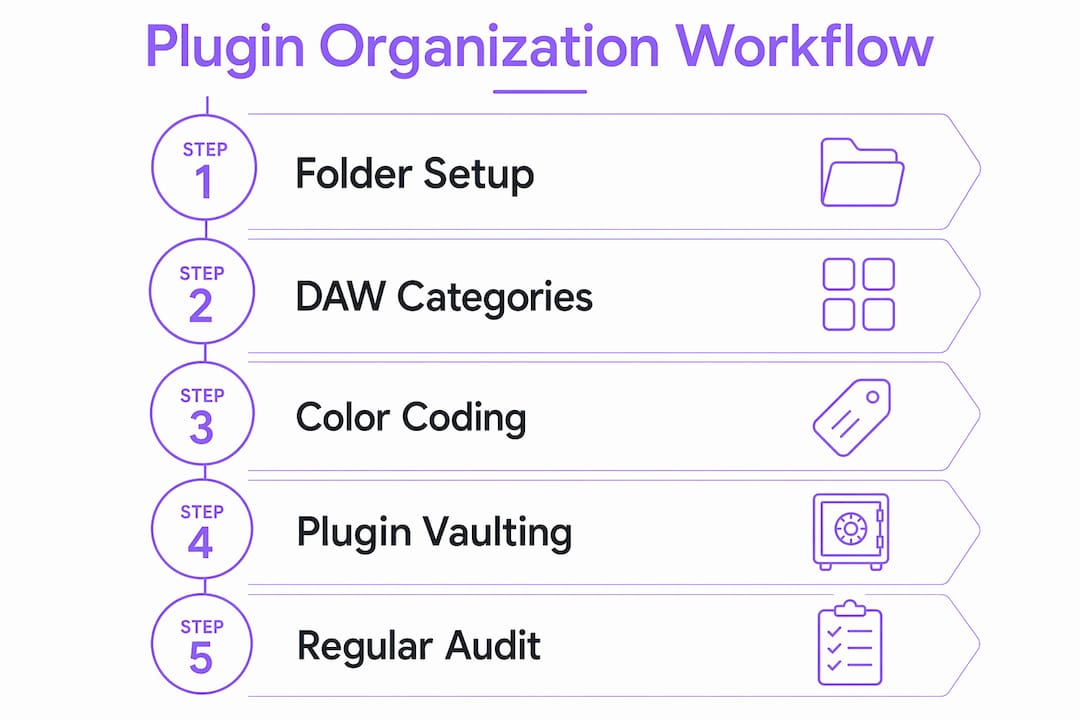
The most effective DAW-level system groups plugins by function first, then by vendor. Create top-level folders like /Compressors, /EQs, /Reverbs, /Delays, /Synths, /Samplers, and /Utilities. Under each, you can add vendor subfolders if your library is large enough to warrant it. This mirrors how a recording studio organizes outboard gear: by what it does, not who made it.
Different DAWs handle this differently, and knowing your platform matters:
| DAW | Organization method | Key feature |
|---|---|---|
| Ableton Live | Collections (colored tags) | Tag one plugin to multiple collections simultaneously |
| FL Studio | Plugin database with custom folders | Favorite system with star ratings for fast recall |
| Cubase | VST Instrument/Effect rack with custom folders | Folder creation directly in the plugin browser |
| REAPER | FX browser with custom categories | Fully manual folder and alias system |
| Logic Pro | AU plugin manager with categories | Built-in validation and enable/disable per plugin |
Color-coding adds a second layer of speed. In Ableton Live, assign a color to each collection so compressors are always blue and synths are always green. Your eye finds the right category before your brain finishes the thought. Naming conventions matter too: prefix plugin names with a category tag like [COMP] FabFilter Pro-C 2 or [REV] Valhalla Room so alphabetical sorting still groups them logically.
The most overlooked habit is removing plugins you no longer use from your active browser. You do not need to uninstall them. Simply exclude them from your DAW's scan path or move them to a vault folder. A clean list of 40 trusted plugins beats a bloated list of 300 every time.
What software tools help manage large plugin libraries?
When your library grows past 100 plugins, manual folder management inside your DAW stops scaling. This is where dedicated plugin management tools earn their place in your workflow.
Plugoff is a free plugin manager for macOS and Windows that takes a vault-based approach. Plugoff offloads unused plugins to a separate vault folder, removing them from your DAW's scan path without deleting the files. It supports AU, VST, VST3, and AAX formats and can separate authorized plugins from trial or expired licenses. The practical result is a DAW menu that only shows plugins you actually own and use.
Pluginize targets Waves and UAD users specifically. Pluginize lets you disable plugins by format and star the ones you use most, moving everything else to an organized Unused folder. Restoration requires no reinstallation. For producers running large Waves bundles where 80% of the plugins sit untouched, this is the fastest path to a clean menu.
| Tool | Platform | Formats supported | Key strength |
|---|---|---|---|
| Plugoff | macOS, Windows | AU, VST, VST3, AAX | Vault offloading, trial/expired separation |
| Pluginize | macOS | VST, VST3 (Waves/UAD) | Star system, bundle-level toggling |
The core principle behind both tools is the same: disabling rather than uninstalling gives you rollback safety. If a session from two years ago calls for a plugin you vaulted, you can restore it in seconds. Deleting it permanently closes that door.
Pro Tip: Run a plugin audit every three months. Move anything you have not used in a full quarter to your vault. Your DAW will load faster, your menus will be shorter, and you will rediscover the 20 plugins you actually love.
For producers who want to track plugin usage across projects, the mix analysis tools at MixAnalytic can help identify which plugins appear most frequently in your sessions, giving you data to inform what stays active and what gets vaulted.
How to organize your DAW projects and sessions
Plugin organization does not exist in isolation. The folder structure of your actual DAW sessions determines whether your plugin choices survive a project reload six months later.
A solid project folder hierarchy includes these top-level folders inside every project directory:
Audiofor all recorded and imported audio filesMIDIfor MIDI clips and sequencesExportsfor stems, bounces, and final rendersReferencefor reference tracks used during mixingArchivefor old versions and discarded ideas you are not ready to delete
File naming follows a simple rule: be specific and be consistent. Name tracks with a prefix that describes the instrument group, then the specific sound. DRUMS_Kick_Main, SYNTH_Lead_Verse, BASS_Sub_Drop tells you everything at a glance. Naming conventions with clear prefixes make session rebuilding faster and collaboration cleaner, especially when handing a project to a mixing engineer who has never seen your template.
Color-coding tracks by instrument group rather than mood or energy keeps your session visually stable. Mood changes; instrument groups do not. Drums are always one color, synths another, vocals a third. This system scales from a 10-track demo to a 120-track album session without breaking down.
In REAPER specifically, folders and buses serve different purposes: folders handle visual organization and submixing, while buses handle parallel processing and routing. Conflating the two creates sessions that look organized but route audio incorrectly. Keep them conceptually separate and your mix architecture stays clean.
Templates are the multiplier here. Build one master session template with your folder structure, color scheme, and most-used plugins pre-loaded. Every new project starts from that template. You spend zero time on setup and go straight to making music.
What troubleshooting steps fix common plugin organization mistakes?
Even a well-designed system breaks down if you make a few common errors. These are the ones that cause the most wasted time.
- Installing to unscanned directories. If your DAW does not know a folder exists, it will never find the plugins inside it. Always verify that every install path is listed in your DAW's plugin scan settings before installing anything new.
- Rescanning repeatedly after every install. Each unnecessary rescan risks creating duplicate entries. Add the correct path, install the plugin, scan once, and confirm detection. That is the complete process.
- Misclassifying plugins during setup. A compressor filed under "Dynamics" in one DAW and "Effects" in another creates confusion when you switch platforms. Pick one classification system and apply it everywhere.
- Running both VST2 and VST3 versions of the same plugin. This is the most common source of duplicate menu entries. Audit your installed formats and remove the VST2 version whenever a VST3 exists.
- Neglecting plugin database backups. Your DAW stores plugin scan data in a database file. Back this file up alongside your projects. Rebuilding a plugin database from scratch after a system migration takes hours that a backup would have saved in seconds.
The mix analysis resources at MixAnalytic cover additional strategies for managing plugin dependencies in FL Studio, which is particularly useful when diagnosing missing plugin errors after a system reinstall.
Key takeaways
Effective plugin management requires a three-layer system: clean installation paths by format, logical DAW-level categorization by function, and a vault-based offloading tool for plugins you own but rarely use.
| Point | Details |
|---|---|
| Separate plugin formats by folder | Keep VST2, VST3, AU, and AAX in distinct directories to prevent scan conflicts and duplicate entries. |
| Organize DAW browsers by function | Create folders like /Compressors and /Synths so you find tools by what they do, not who made them. |
| Use offloading tools, not deletion | Plugoff and Pluginize vault unused plugins so you can restore them for old sessions without reinstalling. |
| Apply consistent naming conventions | Prefix track and file names with instrument group labels to make sessions readable and collaboration-ready. |
| Audit your library quarterly | Move unused plugins to a vault every three months to keep DAW menus short and load times fast. |
Why most producers organize their plugins too late
I have seen producers with 400 plugins spend the first 15 minutes of every session just finding the right compressor. That is not a plugin problem. That is a system problem, and it compounds every time you add something new to your library.
The conventional advice is to organize as you go. My experience says the opposite. Set up your full system before you install your next plugin. Define your folder structure, pick your naming convention, and choose your vault tool. Then every new plugin you acquire slots into an existing place rather than adding to the chaos.
The insight most articles skip is that plugin organization is also a curation decision. When you are forced to categorize a plugin, you are also forced to ask whether you actually need it. That friction is useful. I have vaulted plugins I thought were indispensable and never missed them. The producers I know with the most focused creative output tend to have the smallest active plugin lists, not the largest.
Your system will need to evolve as your library grows. Build it with that in mind. Start with five or six top-level categories in your DAW browser, and only add subcategories when a category genuinely becomes too large to scan quickly. Complexity added before it is needed just creates more maintenance work. The goal is a setup that gets out of your way and lets you focus on the music.
— Kai
Build your plugin workflow on precision tools

A well-organized plugin library is only as good as the plugins inside it. Vector-dsp builds professional-grade audio plugins in VST3, AU, and AAX formats, designed with the kind of intentional architecture that fits cleanly into the organized systems described in this article. Every Vector-dsp plugin installs to standard OS paths, scans without conflicts, and performs with low-latency precision that holds up in demanding sessions. If you are building a focused, high-quality plugin library rather than an overwhelming one, explore the Vector-dsp plugin catalog and see how tools built around DSP precision complement a disciplined production workflow. The ToneLab plugin is a strong starting point for producers who value meticulous sound control.
FAQ
What is plugin organization in music production?
Plugin organization is the practice of categorizing, installing, and managing audio plugins so your DAW browser stays clean and sessions load without errors. It covers installation directories, DAW-level folder structures, and tools that vault unused plugins.
How do I organize plugins inside Ableton Live?
Ableton Live uses a Collections system that lets you tag plugins with color-coded labels. Assign each plugin to a category like Compressors or Reverbs, and use the colored tags to filter your browser instantly during a session.
What is the difference between vaulting and uninstalling a plugin?
Vaulting moves a plugin out of your DAW's scan path without deleting the files, so you can restore it for old sessions. Uninstalling removes the files permanently, which can break projects that reference that plugin.
Should I install VST2 and VST3 versions of the same plugin?
No. VST3 is more efficient and better supported by modern DAWs. Installing both versions creates duplicate entries in your plugin browser. Remove the VST2 version whenever a VST3 alternative exists.
How often should I audit my plugin library?
A quarterly audit is the practical standard. Move any plugin you have not used in three months to a vault folder using a tool like Plugoff. This keeps your active list short, your DAW menus fast, and your sessions free of scan clutter.