Fix AU Validation Failures in Logic Pro With 6 Engineer Tested Steps
Fix AU Validation Failures in Logic Pro With 6 Engineer Tested Steps

The fastest path back to a working plugin: confirm the software is authorized, delete any leftover .component file and reinstall the current build, then run Reset & Rescan Selection in Logic's Plug-in Manager. Most AU validation failures on Mac trace back to a stale registration, a missing license, or a duplicate copy fighting for the same slot. If those three steps don't clear it, the fix usually lives one layer deeper, in the cache files or the Terminal.
TL;DR:
- Most validation failures result from stale registration, missing licenses, or duplicate plugin files, which can often be fixed by reinstallation and cache clearing.
- Deleting all copies of the
.componentfile, including in system and user folders, and fully restarting Logic usually resolves stubborn validation errors.- Terminal commands like
auval -ato list registered plugins andkillall -9 AudioComponentRegistrarto refresh registration significantly aid troubleshooting.- Mismatched architecture or outdated API calls on Apple Silicon can cause validation discrepancies, requiring specific checks like forcing Rosetta or adjusting build versions.
- Consistent plugin management practices, such as keeping one canonical components folder and archiving installers, help prevent future validation issues.
Table of Contents
- Quick Fixes for AU Validation Failed on Mac
- The Full Troubleshooting Workflow: From File System to Cache to Rescan
- Terminal-Level Checks: auval, killall, and Architecture Flags
- When the Plugin Itself Is the Problem, Not Your Mac
- What Vector-DSP's Engineers Watch for During AU Testing
- Keeping Your Plugin Setup From Breaking Again
- How We Triage AU Validation Reports
- Get Vector-DSP Plugins and Support When You Need Them
- Where to Go for Deeper Troubleshooting
- Sources
Quick Fixes for AU Validation Failed on Mac
Before touching Terminal or digging through folders, run this five-minute pass. It resolves a surprising share of AU validation errors without any deeper digging.
- Check authorization first. If the plugin uses iLok or a vendor activation tool, an expired or missing license will make Logic report a validation failure that has nothing to do with the file itself.
- Reset & Rescan Selection. Open Logic Pro's Plug-in Manager, select the failing plugin, and run this before anything more invasive.
- Confirm the .component location. It should sit in
/Library/Audio/Plug-Ins/Components, not buried in a Downloads folder or still flagged as quarantined by macOS. - Reinstall, then restart Logic completely. A fresh install that Logic never re-scanned is a common trap. Quit Logic fully after reinstalling, don't just close the window.
If the plugin still shows "failed validation" after these four steps, move to the full workflow below, since something is likely stuck at the file or cache level rather than the plugin itself.
The Full Troubleshooting Workflow: From File System to Cache to Rescan
When quick fixes don't cut it, work through this sequence in order. Skipping steps is the number one reason people re-run the same fix twice and get the same result.
- Locate every copy of the component. System-wide installs live at
Macintosh HD/Library/Audio/Plug-Ins/Components. User-specific installs sit in~/Library/Audio/Plug-Ins/Components, which you reach in Finder through Option, then Go, then Library. - Delete all copies of the .component file, including anything in the Trash. macOS can still reference a deleted file until the Trash is actually emptied, which quietly blocks a clean re-registration.
- De-quarantine if the plugin was downloaded manually. Gatekeeper flags fresh downloads, and that flag alone can trigger a validation failure even on a perfectly good build. Only clear the quarantine attribute on files you trust and downloaded from the vendor directly.
- Reinstall the latest build from the vendor, matching your macOS version and processor architecture.
- Run Reset & Rescan Selection on just that plugin. If problems persist across multiple plugins, escalate to Full Audio Unit Reset, which clears Logic's entire AU cache and forces a ground-up rescan.
- Delete the AU cache file directly if the in-app reset doesn't take. The file
com.apple.audiounits.cachesometimes holds onto a broken entry that Logic's own reset won't touch. Remove it and restart macOS, not just Logic.
Pro Tip: Run Reset & Rescan Selection before Full Audio Unit Reset every time. The full reset rebuilds validation data for every AU plugin on your system, which can take several minutes and temporarily disrupt other plugins that were working fine.
This sequence mirrors what most vendor knowledge bases recommend, and it works because it addresses the three real failure points in order: software authorization and reinstallation, stale file references, and corrupted cache data.
Terminal-Level Checks: auval, killall, and Architecture Flags
When the GUI tools stall out, the Terminal gives you a more direct read on what's actually failing.
- Run
auval -ato list every registered Audio Unit, orauval -v aufx YourPlugin VDsp(swap in your plugin's type, subtype, and manufacturer code) to validate one component directly and see the raw error output. - Watch for error 4099. Developer forums treat this as a catch-all code rather than one specific bug. Root causes range from duplicate component copies to bus and channel misconfigurations in AUv3 plugins, so treat it as a starting point for investigation, not a diagnosis.
- Run
killall -9 AudioComponentRegistrarto force macOS to drop its cached registration data and rebuild it from scratch. This is often faster than a full restart and fixes the same class of problem. - Codesign only when you understand the risk. Re-signing a component with
codesigncan resolve certain trust errors, but signing a plugin you didn't build yourself can break vendor licensing checks. Treat this as a last resort, not a routine step. - Force Rosetta with
arch -x86_64before your auval command if you suspect an architecture mismatch. Note thatauval -comprelies on the legacy Component Manager API, which can fail on Apple Silicon even when the plugin itself works fine in Logic, since ARM64 builds don't require that older API path.
When the Plugin Itself Is the Problem, Not Your Mac
Not every validation failure is a system issue. Sometimes the plugin's own configuration is what's broken, and no amount of cache clearing will fix it.
- Type mismatches cause silent failures. A plugin registered as an effect but coded with instrument-style I/O (or the reverse) will fail validation without a clear error message pointing at the real cause.
- AUv3 is picky about buses and MIDI channels. Misconfigured input/output buses or MIDI channel counts are a frequent, hard-to-spot reason a plugin vanishes from Logic's list instead of throwing an obvious error. Understanding the AU format's specific requirements helps you spot this faster.
- Duplicate build artifacts are sneaky. Old
.componentor.appexfiles left in Xcode build folders, temporary directories, or the Trash can register alongside the current build and confuse validation, even when you're certain you only installed one copy.
What Vector-DSP's Engineers Watch for During AU Testing
Apple Silicon changed more than raw speed. It changed which validation APIs actually apply, and that gap trips up plugins that tested clean on Intel.
Deprecated Component Manager calls are still technically present on ARM64, but macOS doesn't require a plugin to satisfy them the way it once did. That mismatch is why auval -comp sometimes fails while the plugin itself runs perfectly inside Logic. Our engineers treat that specific discrepancy as a first checkpoint, not a red flag, when a test build behaves differently across architectures.
During internal builds, bumping the version number (or setting it to 0 in a debug build) is a deliberate trick to force macOS to treat the plugin as new and re-register it instead of pulling a stale cached entry. It's a small habit, but it saves hours of chasing a "fixed" bug that was really just an old cache doing its job.
Pro Tip: If you're testing a demo build repeatedly, uninstall the previous version completely before installing the next one. Side-by-side test builds are the single most common source of the duplicate-registration problems described earlier in this article.
Keeping Your Plugin Setup From Breaking Again
A handful of habits prevent most of what sends people searching for a validation fix in the first place.
- Keep one canonical Components folder. Mixing system-wide and user-level installs of the same plugin is asking for a silent conflict later.
- Archive your installers. When a plugin update breaks something, you want the last known good version on hand, not a hunt through old downloads.
- Update Logic and your plugins together, and check vendor compatibility notes before either update, especially around major macOS releases.
- Avoid running two versions of the same plugin side by side unless you're intentionally A/B testing a build, and clean up the older one the moment you're done. Reading up on how different plugin formats behave across DAWs also helps you spot compatibility issues before they turn into validation errors.
How We Triage AU Validation Reports
When a validation report comes in, the sequence is almost always the same: confirm the component's file path, check for duplicates, run auval directly, then look at codesign status and architecture before anything else.
If you're reaching out for support on a stubborn failure, include your Logic version, macOS version, the plugin's exact file path, and the raw auval output. That single log usually tells us more than a screenshot of the error dialog ever could, and it cuts the back and forth down to one or two exchanges instead of five.
— Kai
Get Vector-DSP Plugins and Support When You Need Them
Vector-DSP builds AU, VST3, and AAX plugins with the format compliance this whole troubleshooting process exists to protect, so a fresh install actually stays fixed instead of breaking again next update. Every plugin ships with a free demo version, meaning you can test compatibility on your own system before buying a license, not after.
If you've just worked through a validation failure and want to see how a properly packaged AU plugin behaves from install to first launch, download a demo from the Vector-DSP landing page and run it through Logic's Plug-in Manager yourself. Running into an issue anyway? Contact support with the same diagnostic details covered above: your Logic version, macOS version, the plugin's file path, and your auval output. That's the fastest way to get a real answer instead of a generic troubleshooting script, and it's also worth reading our breakdown of the plugin demo workflow before you install anything new.
Where to Go for Deeper Troubleshooting
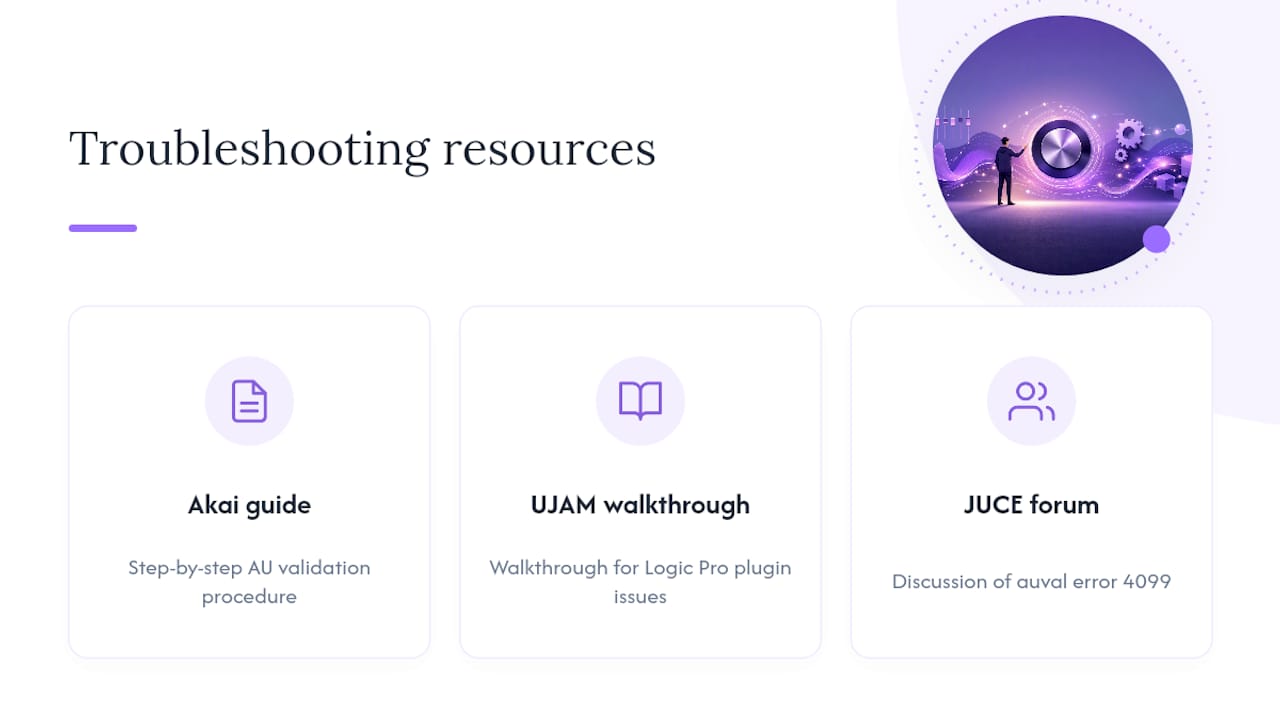
For step-by-step vendor procedures, see Akai's guide to solving incompatible AU validation errors and UJAM's walkthrough on resolving plugin issues in Logic Pro. For architecture-specific error codes, the JUCE forum's discussion of auval error 4099 covers the developer side in more depth than any single vendor article does.
Sources
- Solving Incompatible AU Validation Errors on macOS
- Auval Error 4099 on macOS - MacOSX and iOS - JUCE