3 Engineer Tested Steps to Fix Apple Core Audio Dropouts for DAW Users
3 Engineer Tested Steps to Fix Apple Core Audio Dropouts for DAW Users
A reboot fixes most post-update Apple Core Audio dropouts by clearing stale daemon state. If that doesn't hold, run sudo killall coreaudiod in Terminal, toggle the sample rate in Audio MIDI Setup, and test your interface on a direct USB connection. These three steps force macOS to renegotiate the entire audio path instead of limping along on leftover configuration, and they resolve the majority of cases without touching any hardware.
TL;DR:
- Most post-update Core Audio dropouts are caused by stale daemon states, which can often be fixed by rebooting or restarting the coreaudiod process.
- Diagnosing whether the issue is system-wide or device-specific requires testing multiple outputs and using Console.app to look for overload messages or repeated daemon restarts.
- In persistent cases, resetting the entire audio daemon family and deleting stale preference files can resolve deep configuration issues, especially after OS updates.
- Plugin CPU spikes, storage bottlenecks, and USB or Thunderbolt hub connections are common causes of session dropouts, not hardware failure alone.
- Testing with direct USB connections and current firmware helps isolate interface and cable problems, while monitoring logs guides precise bug reports.
Table of Contents
- What Causes Apple Core Audio Dropouts?
- Quick Fixes Worth Trying First
- When You Need to Reset Core Audio Completely
- Do Your DAW and Plugins Cause the Dropouts?
- Is Your USB or Thunderbolt Setup the Real Problem?
- How to Monitor and Prevent Future Dropouts
- Vector-dsp's Engineer-Tested Sequence
- What Actually Works vs. What Wastes Your Weekend
- Where to Go for Deeper Diagnostics
- Sources
- FAQ
What Causes Apple Core Audio Dropouts?
Before you touch a single setting, figure out whether the problem lives in Core Audio itself, in one app, or in a piece of hardware. Skipping this step is why people spend a weekend reinstalling macOS to fix a $9 USB cable.
Start with the simplest test: play sound from two unrelated sources.
- Play a local music file in Music or QuickTime, then open a YouTube video in Safari, then load a session in your DAW. If all three stutter, you're looking at a system-wide Core Audio issue, not an app bug.
- Switch outputs. Try built-in speakers, then a wired interface, then a Bluetooth headset. If only one output drops out, the problem is device-specific, not systemic.
- Move ports. If you're on a USB or Thunderbolt interface, swap which physical port it's connected to and note whether the behavior changes.
If dropouts follow you across apps and outputs, Core Audio's daemon layer is the likely culprit. If they only show up with one device or one program, you can skip the deeper daemon work below and jump straight to device or app-specific fixes.
The most useful diagnostic tool here isn't a plugin. It's Console.app, already installed on your Mac.
- Open Console.app and select your Mac under Devices.
- Type
halsinto the search field and start playing audio that reliably drops out. - Watch for entries containing HALS_OverloadMessage, which is Core Audio's own way of reporting that it missed an IO cycle deadline. Source Elements' breakdown of the error confirms this message is the standard signature of a system-side overload, not an app crash.
- Also search
coreaudiodand check whether the process is restarting repeatedly. Repeated restarts with timestamps that line up with your dropouts are strong evidence the daemon itself is the point of failure.
If your DAW throws its own "system overload" warning, write down exactly what triggered it. A dropout that happens only when you add the fourth instance of a specific plugin tells a completely different story than one that happens randomly at idle.
Quick Fixes Worth Trying First
Most Apple audio glitches that show up right after a system update are software-state problems, not hardware failures. Work through these in order before you consider anything more invasive.
- Reboot. This sounds too simple to matter, but MacPaw's troubleshooting guide notes that major macOS updates frequently leave audio daemons half migrated, still holding references to old drivers or device states. A full restart clears that out completely, which a mere log out often doesn't.
- Kill and restart coreaudiod. Open Terminal and run
sudo killall coreaudiod. You'll hear a brief pop or silence as the daemon dies and macOS automatically relaunches it fresh. It's safe, it's fast, and it fixes a surprising number of transient dropouts. - Toggle sample rate in Audio MIDI Setup. Open Audio MIDI Setup, select your output device, and switch the format from 44.1kHz to 48kHz and back. This forces a fresh handshake between Core Audio and the device driver. SoundDial's macOS Tahoe crackling guide points to sample-rate mismatches as one of the most common triggers after an OS update.
- Forget and re-pair Bluetooth audio devices. Go to Bluetooth settings, remove the headset or speaker, and pair it again. Bluetooth codec negotiation frequently breaks after macOS updates, and a clean re-pair resets that handshake.
- Temporarily disable Bluetooth entirely and test with wired output. If dropouts vanish, you've isolated the problem to the wireless stack, not Core Audio itself.
- Raise the buffer size in your DAW. Bump it from 128 to 512 samples and see if the dropouts stop. This won't tell you the root cause, but it tells you whether the issue is timing-sensitive, which matters for the next round of troubleshooting.
Pro Tip: Run these one at a time and test between each one. Stacking three fixes and declaring victory means you'll have no idea which one actually worked when the problem comes back in three weeks.
When You Need to Reset Core Audio Completely
Killing coreaudiod alone sometimes only buys you a few minutes of quiet before the crackling comes back. That happens because client apps still running in the background can be holding corrupted audio state, and they hand that same bad state right back to the daemon the moment it restarts. Apple Community threads tracking repeated coreaudiod crashes show this pattern over and over: users restart the daemon, get five minutes of stability, then watch the problem return.
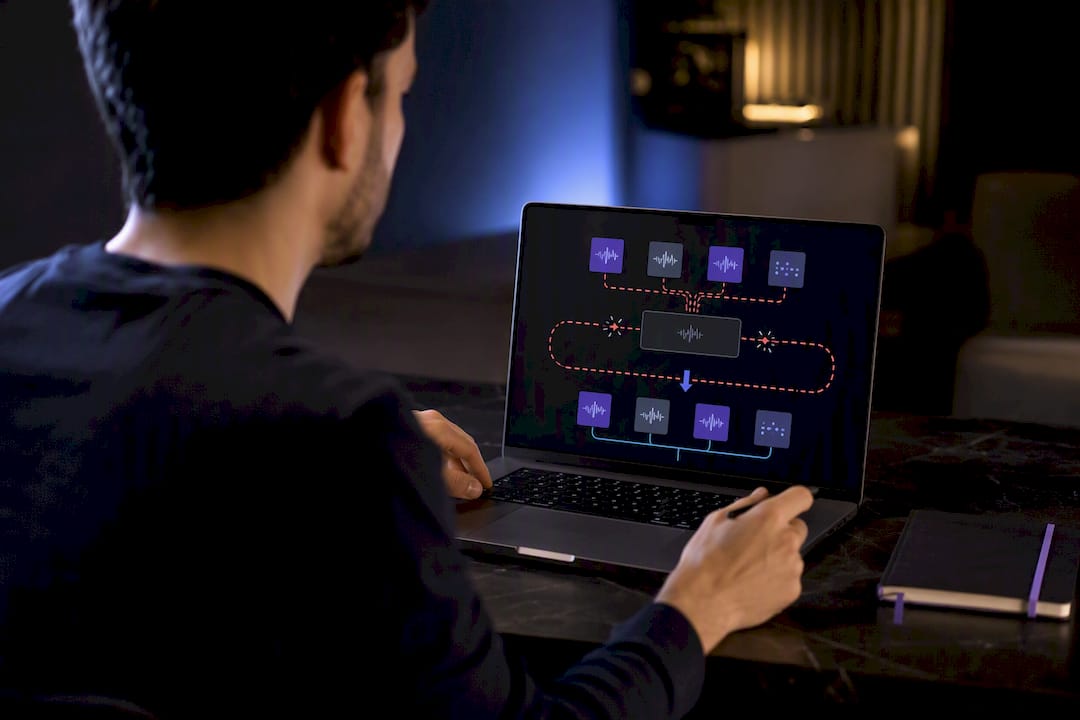
A more thorough reset means restarting the whole family of audio daemons, not just one: coreaudiod, audiomxd, audioclocksyncd, audioanalyticsd, audioaccessoryd, and AudioComponentRegistrar.
Here's the sequence engineers actually use:
- Quit every app that touches audio: your DAW, browser tabs with open media, Music, anything with a mic or speaker permission.
- Run
lsof | grep CoreAudioin Terminal to list every process still holding a CoreAudio handle. Anything unexpected in that list is worth force quitting before you touch the daemons. - Run
sudo killall -9 coreaudiod audiomxd audioclocksyncd audioanalyticsd audioaccessoryd AudioComponentRegistrarto force a clean restart of the entire stack. - Reopen Audio MIDI Setup and toggle the sample rate once more to confirm the renegotiation sticks.
If that still doesn't hold, the next move is deleting stale preference files. macOS stores device mappings and sample-rate defaults in .plist files inside ~/Library/Preferences, and after an update these can lock the system into settings for hardware that no longer matches your current device. Focusrite's support documentation on resetting audio preferences walks through backing up and removing files like com.apple.audio.DeviceSettings.plist so macOS regenerates clean defaults on next launch.
Pro Tip: Copy any plist you're about to delete into a dated folder on the Desktop first. Regeneration takes seconds, but if the new defaults are somehow worse, you'll want the original file to restore.
If Bluetooth is part of the picture, remove the device from System Settings, then delete the Bluetooth plist caches under ~/Library/Preferences/com.apple.Bluetooth.plist, and restart. When none of this resolves it and you suspect a kernel extension or third-party driver conflict, booting into Safe Mode isolates whether a background driver is interfering with Core Audio at all.
Do Your DAW and Plugins Cause the Dropouts?
A session that averages 20% CPU can still drop out constantly, because real-time audio doesn't care about your average load. It cares about the worst millisecond. A single plugin that spikes CPU for even 10 milliseconds at the wrong moment can blow past your buffer's deadline and produce an audible click, even while Activity Monitor shows plenty of headroom.
Certain plugin categories are repeat offenders:
- Convolution reverbs, which do heavy real-time math on every buffer.
- Linear-phase EQs, which trade latency for look ahead processing that spikes under automation.
- Oversampled saturation and distortion plugins, which multiply your sample rate internally before processing.
Isolate the culprit by disabling plugins in groups of four or five and reproducing the dropout each time. When it disappears, re-enable half the group you just removed and repeat until one plugin is left standing.
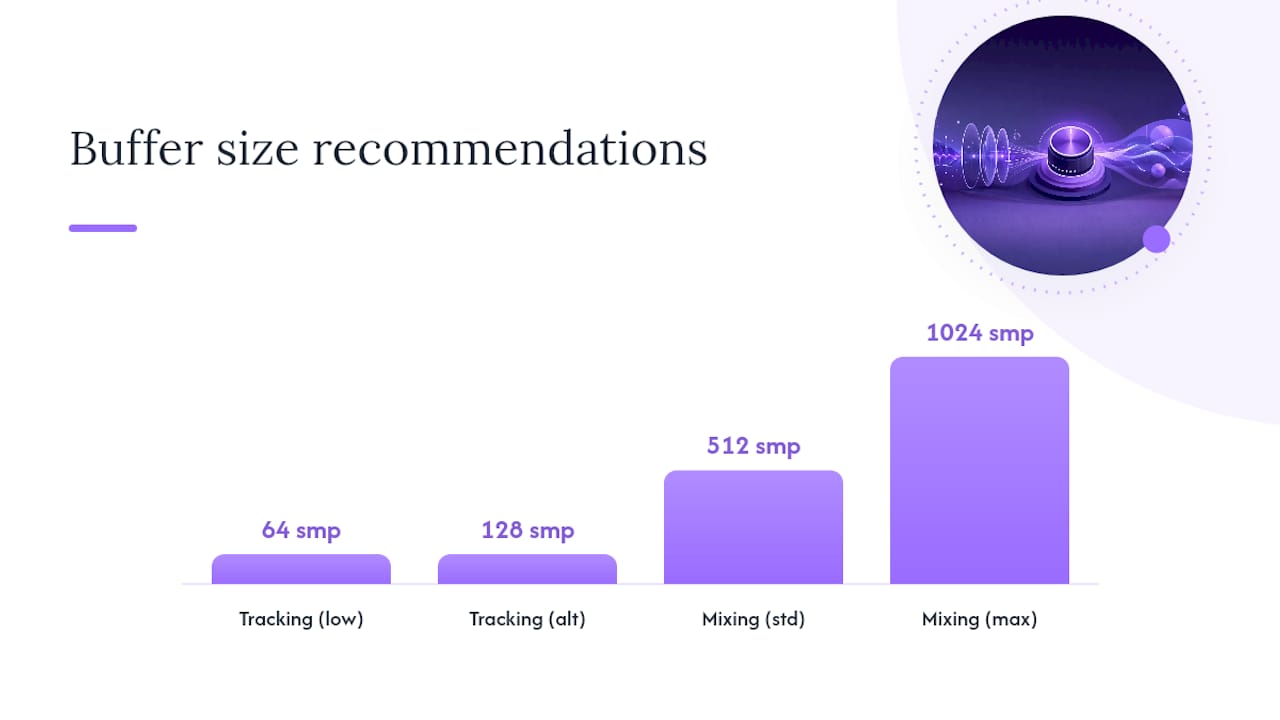
Buffer size matters more here than almost anywhere else. Use a low buffer, around 64 to 128 samples, when tracking for minimal input latency. Switch to 512 or 1024 when mixing, where latency doesn't matter but stability under a heavy plugin chain does. PCAudioLabs' guide to preventing session dropouts makes the point plainly: there's rarely one magic setting, just a system where buffer size, storage speed, and plugin load are all balanced against each other.
Storage throughput plays a role too. Sample-heavy projects with dozens of streamed instrument tracks can outrun a slow external drive. Move the project to a local NVMe drive, or freeze the heaviest instrument tracks to audio, and test the same playback pass again. If the dropout disappears, you found your bottleneck. For a deeper look at how CPU spikes translate into audible glitches, Vector-dsp's explainer on CPU load in audio processing breaks down why average load numbers are misleading for real-time work.
Is Your USB or Thunderbolt Setup the Real Problem?
Plug your interface directly into the Mac, no hub, no dock, no monitor pass-through, and test again. If the dropouts vanish, the hub or dock was the problem all along, not Core Audio.
- Connect the interface directly to a Mac port and reproduce your usual test. This single step resolves a surprising share of complaints. One widely referenced Apple Community thread documents multiple users on Apple silicon whose USB DAC dropouts disappeared entirely once they stopped routing through a hub.
- Try a different port on the Mac itself. Not all Thunderbolt and USB controllers on the same machine share identical bandwidth allocation, and some ports behave better than others under load.
- If your interface supports a USB 2.0 compatibility mode, test it. You'll likely lose access to the highest sample rates or bit depths, but if dropouts disappear in that mode, you've confirmed a USB 3.x controller negotiation issue rather than a fault in the interface itself.
- Check for firmware updates from the interface manufacturer. Driver and firmware mismatches after a macOS update are common enough that most audio hardware vendors release compatibility patches within weeks of a major OS release.
Pro Tip: Avoid running your audio interface through the same hub as a display or dock. Video and audio traffic sharing a hub's limited bandwidth is one of the most underdiagnosed causes of intermittent crackling.
If you've isolated the fault to the interface and firmware updates don't help, contact the vendor with your Console.app logs, the exact macOS version, and the specific port/mode combinations you tested. A support ticket with reproduction steps attached gets resolved far faster than one that just says "it crackles sometimes."
How to Monitor and Prevent Future Dropouts
Capturing a clean log is the difference between a bug report that gets fixed and one that gets ignored. Open Console.app, select your Mac, filter for hals, and start streaming audio that you know will drop out. When it happens, note the timestamp and look for a nearby HALS_OverloadMessage entry. Source Elements' documentation on this exact message is the most useful reference for interpreting what you're seeing, and that log excerpt is the single most valuable attachment you can include in a bug report.
A short prevention checklist keeps most of this from recurring:
- Keep macOS and interface firmware current, since post-update instability is common enough that vendors patch for it regularly.
- Close memory-heavy background apps before a session, especially browsers with dozens of tabs.
- Turn off aggressive power-saving modes while producing. App Nap and automatic graphics switching can both interrupt real-time threads.
- Keep your plugin folder clean. Old, abandoned, or beta plugins are disproportionately likely to be the ones spiking CPU.
| Symptom | Likely cause | First fix to try |
|---|---|---|
| Dropouts across all apps, all outputs | Core Audio daemon state | Reboot, then killall coreaudiod |
| Dropouts on one output only | Device or Bluetooth codec issue | Re-pair device, test wired |
| Dropouts only in DAW under load | Plugin CPU spike | Bypass plugins in groups, raise buffer |
| Dropouts only with hub/dock connected | USB/Thunderbolt topology | Connect interface directly to Mac |
When you're ready to file a bug with Apple or your interface vendor, attach the Console log excerpt, your macOS version, the interface model and firmware version, and the exact steps that reproduce the issue.
Vector-dsp's Engineer-Tested Sequence
The workflow we rely on internally follows a strict order: back up preference files, quit every audio app, run the lsof | grep CoreAudio pipeline to find processes still holding audio state, kill the related daemons, toggle Audio MIDI Setup, then confirm in Console.app that no new HALS_OverloadMessage entries appear.
A few things worth watching that forums rarely mention:
- Development tools like Xcode and the iOS Simulator can quietly re-inject bad thread state into a session running in the background, even when you're not actively building anything.
- Thread priority inversion, where a low-priority process blocks a real-time audio thread, is a real contributor to dropouts under heavy multitasking loads.
Pro Tip: If you write or debug audio software yourself, our audio callback primer and low-latency thread programming guide go deeper into why scheduling delays of a few milliseconds are enough to break a real-time audio path.
What Actually Works vs. What Wastes Your Weekend
The conventional advice online treats every dropout the same way: reinstall macOS, buy a new interface, blame Bluetooth. Most of that is wasted effort. The pattern that actually holds up, across forums, support threads, and our own engineering notes, is that post-update Core Audio problems are overwhelmingly software-state issues, not hardware failures.
What people get wrong is skipping the diagnostic step. They jump straight to killing daemons or deleting plists before confirming whether the problem is system-wide or isolated to one device. That's backward. Isolate first, then escalate your fix to match what you actually found. Most cases resolve in the first two fixes; a smaller number need the full daemon reset. Genuinely stubborn cases, the ones that survive a plist wipe and a firmware update, deserve a support ticket with real logs attached, not another forum post.
— Kai
Where to Go for Deeper Diagnostics
If you build or ship audio software and want to go past consumer troubleshooting, Vector-dsp's engineering blog is written for exactly that. Our guides cover debugging workflows for audio developers, fixing VST3 loading issues in Ableton, and ASIO dropout diagnostics on Windows for anyone working across platforms.
Vector-dsp builds real-time DSP plugins where a missed IO deadline isn't an inconvenience, it's the whole product failing. That engineering discipline is exactly what informs the daemon-reset sequence and buffer-size guidance in this piece, because the same low-latency constraints that break a mix session are what our own plugin architecture is built to survive. ToneLab, our multi-lane parallel effects processor, runs on that same real-time DSP foundation, built for VST3, AU, and AAX across Windows and macOS. If you want to see how a plugin designed around real-time performance actually behaves in a session, try the ToneLab demo and load it into your usual session to feel the difference for yourself.
Sources
- How to fix coreaudiod high CPU usage — MacPaw
- CoreAudio discussions and repeated crash reports — Apple Communities
- Diagnosing and managing the dropouts issue in Apple’s CoreAudio (HALS_OverloadMessage) — Source Elements
- How to fix audio crackling and popping on macOS Tahoe — SoundDial Blog
FAQ
Why Is My Audio Cutting In and Out on My Mac?
Most cases trace back to a Core Audio daemon left in a bad state after a system update, a sample-rate mismatch, or a plugin spiking CPU for a few milliseconds at a time. Isolating whether the issue is system-wide or app-specific, as covered above, tells you which fix to apply.
Why Does My Audio Cut In and Out Randomly?
Random-seeming dropouts are usually not random at all. They're tied to a specific trigger, a background app, a Bluetooth reconnection, a plugin spike, that only feels random because you haven't captured a Console.app log yet to see the pattern.
How Do I Reset Core Audio on a Mac?
Run sudo killall coreaudiod in Terminal for a quick reset, or for a full reset kill the related daemons (audiomxd, audioclocksyncd, audioanalyticsd, audioaccessoryd, AudioComponentRegistrar) together and toggle the sample rate in Audio MIDI Setup afterward.
Why Does My iPhone Audio Keep Cutting In and Out?
On iOS the same underlying idea applies, though you can't access Terminal. Bluetooth codec renegotiation and app-level audio session conflicts are the most common causes, and a restart plus forgetting and re-pairing the Bluetooth device resolves most of them.
Is a Bluetooth Connection More Likely to Cause Dropouts Than a Wired One?
Yes. Bluetooth codec negotiation is a frequent point of failure after macOS updates, which is why testing with a wired connection is one of the fastest ways to confirm whether wireless is the actual cause.