AAX Plugin Studio Session Workflow: 2026 Pro Guide
AAX Plugin Studio Session Workflow: 2026 Pro Guide

An optimized AAX plugin studio session workflow is the difference between a session that runs clean and one that crashes at the worst moment. Pro Tools is the only major DAW that uses the AAX format exclusively, which means every plugin decision you make directly affects session stability, recall accuracy, and CPU load. This guide covers plugin library organization, session template setup, integration best practices, and troubleshooting fixes that professional engineers use daily. Whether you manage 20 plugins or 200, the principles here apply directly to your Pro Tools environment.
What is an AAX plugin studio session workflow?
An AAX plugin studio session workflow is the complete system a producer or engineer uses to install, organize, activate, and recall AAX plugins within Pro Tools sessions. The term "AAX" stands for Avid Audio eXtension, and it is the native plugin format for Avid Pro Tools. No other DAW uses this format as its primary standard.
Pro Tools supports two AAX types: AAX Native, which runs on your host CPU, and AAX DSP, which requires dedicated Avid hardware such as HDX cards. That distinction matters because it determines how you budget processing power across a session. A session built entirely on AAX Native plugins will behave differently under load than one that offloads processing to an HDX card.

AAX's deep integration with Pro Tools enables precise automation, parameter recall, and timing alignment. That reliability is why professional studios standardize on AAX rather than relying on plugin wrappers, which introduce latency and compatibility risk. Understanding this format is the foundation of every workflow decision that follows.
How to manage and organize your AAX plugin library
Plugin library organization is the single most overlooked factor in session performance. Most producers install every plugin they own and leave them all active, which forces Pro Tools to scan and load hundreds of plugins at launch. That slows startup, increases the risk of crashes, and makes it harder to find the tools you actually need.
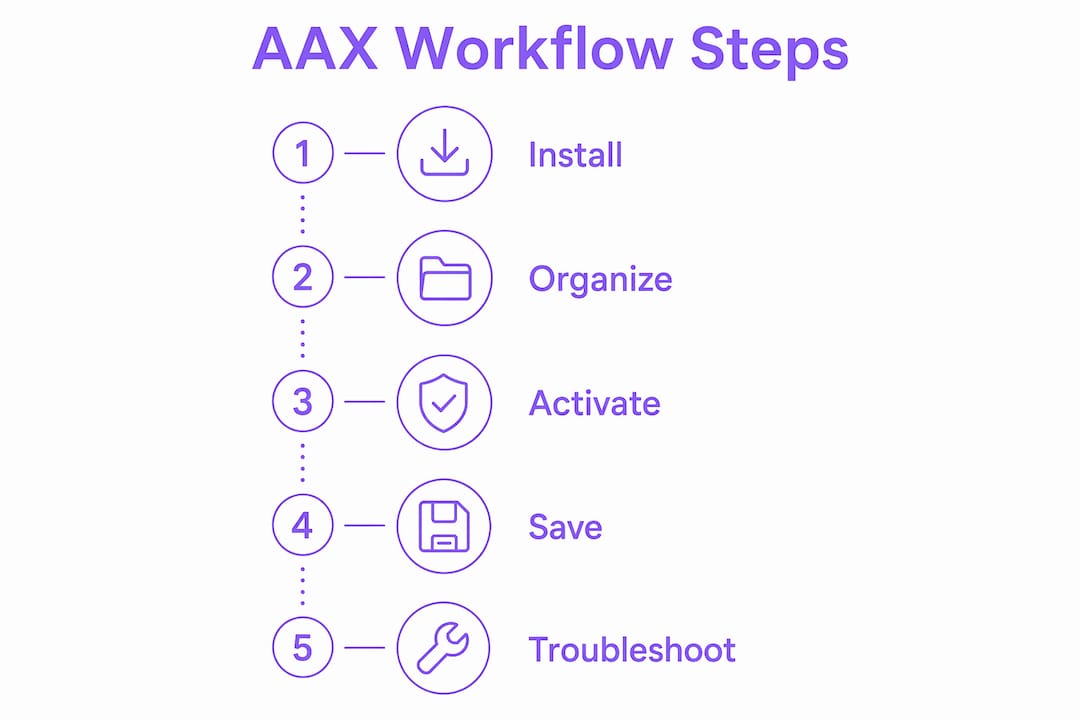
macOS third-party utilities now let you manage large AAX libraries by moving plugins between Active and Unused folders. One documented use case involved moving over 80 plugins for specialized tasks like Atmos mixing or scoring. That kind of targeted activation keeps your session lean and focused.
AAX Plugin Manager, which runs on macOS Monterey or later and supports Pro Tools versions 2019 through 2025 with Apple silicon support, lets you group, tag, and toggle plugin sets. You can build a "Mixing" group, a "Scoring" group, and an "Atmos" group, then switch between them in seconds. Each group activates only the plugins relevant to that task.
Best practices for plugin library organization:
- Group by task type. Create separate groups for mixing, mastering, scoring, and immersive audio. Activate only the group you need for the current session.
- Tag plugins by category. Label dynamics, EQ, reverb, and instrument plugins so you can filter quickly inside Pro Tools.
- Audit your library quarterly. Remove plugins you no longer use. Inactive licenses still consume scan time if the files are present.
- Keep AAX Native and AAX DSP plugins separated. Mixing them without a clear routing plan leads to unexpected processing gaps.
Pro Tip: Always quit Pro Tools before moving large numbers of plugins between Active and Unused folders. Moving plugins while Pro Tools is open risks database corruption and application hangs during the rescan process.
How do Pro Tools session templates improve workflow consistency?
Session templates are pre-configured Pro Tools sessions that store your track layout, plugin chains, I/O routing, and bus assignments. They eliminate the setup time that eats into billable hours at the start of every project. Professional engineers save templates as full session folders, not just .ptxt files, because the folder structure allows external tools to batch manage assets and re-link media without opening the DAW.
The difference between a .ptxt file and a full session folder is significant. A .ptxt file stores track and plugin data but strips out the folder hierarchy. A full session folder preserves the complete asset structure, which matters when sessions move between studios or engineers on a network.
Here is how to build a production-ready template:
- Set your I/O routing first. Map all inputs, outputs, and buses before adding tracks. Changing I/O after building a template creates re-routing work on every new session.
- Add your core track layout. Include stereo and mono audio tracks, aux returns, VCA masters, and a master fader. Name every track clearly.
- Insert your standard plugin chains. Add your go-to EQ and dynamics plugins to each track type. Leave them bypassed so they are ready without adding CPU load.
- Save as a full session folder. Use File > Save As and store the entire folder, not just the session file. This preserves all linked assets.
- Test the template before relying on it. Open it fresh, verify all plugins load correctly, and confirm I/O routing matches your hardware setup.
Pro Tip: Build separate templates for different session types: tracking, mixing, mastering, and Atmos. Switching between them takes seconds, and each one loads only the plugins relevant to that task.
Collaborative projects benefit most from full session folder templates. When a session moves between studios, the folder structure keeps all assets intact. External batch tools can re-link media and transfer session structures without the receiving engineer needing to open the DAW to diagnose missing files.
Step-by-step AAX plugin integration within a Pro Tools session
Integrating AAX plugins correctly from the start prevents the most common session problems: missing plugins on reopening, automation that does not recall, and CPU spikes mid-session. The plugin integration process follows a clear sequence that applies to every session type.
Installation and activation
AAX plugins install to a specific system folder that Pro Tools scans at launch. On macOS, that location is /Library/Application Support/Avid/Audio/Plug-Ins. Placing plugins anywhere else means Pro Tools will not find them. Activation typically requires an iLok account or a license file, depending on the developer.
Adding plugins to tracks and saving settings
Insert plugins directly on tracks via the insert slots in the Mix window. Save plugin settings as presets using the Settings menu inside each plugin window. Those presets recall automatically when you reopen the session, provided the plugin is installed and activated on the system.
Managing CPU vs DSP load
| Plugin Type | Processing Location | Best Use Case |
|---|---|---|
| AAX Native | Host CPU | Most sessions, no extra hardware needed |
| AAX DSP | Avid HDX card | High track counts, low-latency monitoring |
| AAX Native (low latency) | Host CPU | Live tracking with real-time monitoring |
Choosing the right type for each task keeps your system stable. AAX DSP offloads processing from the CPU, which is valuable during large orchestral sessions or dense mix sessions with 60-plus tracks.
Key integration steps to follow on every session:
- Verify plugin activation before the session starts. A missing license mid-session forces a restart.
- Save plugin presets with descriptive names. Generic names like "Preset 1" create confusion during revisions.
- Automate plugin parameters early. Writing automation before the mix is dense makes editing cleaner.
- Check for plugin updates before long projects. An outdated plugin version can cause session incompatibility weeks into a project.
How do you troubleshoot AAX plugin workflow issues?
Plugin-related crashes and slowdowns share a small set of root causes. Identifying the cause quickly is the skill that separates engineers who lose sessions from those who do not.
Diagnostic utilities can inspect session metadata for corrupt plugins per track and validate audio asset integrity before mixing. Running a diagnostic check before a critical mix session takes five minutes and can prevent hours of lost work. Advanced diagnostic software inspects plugin metadata and audio file integrity pre-mix to catch corrupt plugins or missing assets before they cause a crash.
Common causes of AAX plugin session instability:
- Too many active plugins at launch. Pro Tools scans every active plugin at startup. A library of 300 active plugins adds significant launch time and increases crash risk.
- Mismatched plugin versions. Opening a session created with a newer plugin version on a system running an older version causes missing plugin errors.
- Corrupt plugin preferences. Preference files can become corrupt after a crash. Deleting and regenerating them resolves many unexplained behaviors.
- Insufficient buffer size for Native plugins. A buffer set too low during playback causes CPU overload errors, especially with CPU-intensive reverb or convolution plugins.
"Failures in plugin organization cascade into operational issues in studio scheduling and equipment management, impacting productivity and revenue."
Regular plugin audits are a core studio management practice, not an optional task. Studio management experts recommend treating plugin library maintenance the same way you treat equipment maintenance: scheduled, documented, and consistent. Disorganized plugin libraries create scheduling delays when sessions fail to load on time.
Pro Tip: Keep a dedicated "emergency" plugin group with only your most stable, essential plugins. If a session becomes unstable, switching to this group isolates whether a specific plugin is causing the problem.
Key Takeaways
A well-structured AAX plugin workflow requires organized libraries, task-specific templates, and proactive diagnostics to maintain session stability and production speed.
| Point | Details |
|---|---|
| Organize plugins by task group | Use AAX Plugin Manager to activate only the plugins needed for each session type. |
| Save templates as full session folders | Full folder templates preserve asset structure and support external batch management tools. |
| Match plugin type to hardware | Use AAX DSP for high track counts with HDX cards; use AAX Native for standard CPU-based sessions. |
| Quit Pro Tools before moving plugins | Moving plugins while Pro Tools is open risks database corruption during the rescan process. |
| Run diagnostics before critical sessions | Diagnostic tools catch corrupt plugins and missing assets before they cause a mid-session crash. |
What I have learned from years of AAX plugin workflow management
The biggest mistake I see producers make is treating plugin organization as a one-time setup task. You install your plugins, sort them once, and assume the system stays clean. It does not. Every new plugin purchase, every Pro Tools update, and every new session type adds complexity that compounds over time.
The tool that changed my workflow most was a dedicated AAX Plugin Manager app. Before using one, I was manually moving plugin files in Finder, which is slow and error-prone. The ability to toggle entire plugin groups for different session types, like switching from a full mixing rig to a lean scoring setup, cut my session prep time significantly. The plugin organization strategies that work in theory actually hold up in practice when you have the right tools.
Templates deserve more credit than most producers give them. I have seen engineers spend 45 minutes at the start of every session rebuilding the same track layout from scratch. A well-built template with pre-routed buses and bypassed plugin chains eliminates that entirely. The investment is 90 minutes once, and it pays back on every session after.
My honest advice on Native vs DSP: unless you are running a large commercial studio with HDX hardware, build your workflow around AAX Native plugins. The hardware dependency of AAX DSP adds a variable that creates problems when sessions move between systems. Native keeps things portable and predictable.
— Kai
Vector-dsp plugins built for Pro Tools workflows
Vector-dsp develops professional audio plugins built on advanced DSP principles, with AAX format support designed for Pro Tools environments. The plugin lineup focuses on precision processing and real-time performance, which makes them a natural fit for the kind of organized, template-driven workflows covered in this guide.
If you are building out your AAX plugin library or refining your session management approach, the Vector-dsp plugin catalog is worth exploring. The site also includes technical guides on AAX format differences and plugin architecture that go deeper than most manufacturer documentation. Vector-dsp tools are built for producers who want control over every processing decision, not just a preset and a bypass button.
FAQ
What is the AAX plugin format in Pro Tools?
AAX (Avid Audio eXtension) is the exclusive plugin format for Avid Pro Tools. It comes in two types: AAX Native, which runs on the host CPU, and AAX DSP, which requires Avid HDX hardware.
How do I organize a large AAX plugin library?
Use a dedicated AAX Plugin Manager app on macOS to group plugins by task type and toggle only the plugins needed for each session. Always quit Pro Tools before moving plugins between Active and Unused folders.
What is the best way to use session templates in Pro Tools?
Save templates as full session folders rather than .ptxt files. Full folders preserve asset structure, support external batch management, and transfer cleanly between studios without missing file errors.
Why do AAX plugins cause Pro Tools to crash?
The most common causes are too many active plugins at launch, mismatched plugin versions between systems, and corrupt preference files. Running a diagnostic utility before critical sessions catches most of these issues early.
Should I use AAX Native or AAX DSP plugins?
Use AAX Native for most sessions, as it requires no additional hardware and keeps sessions portable. Reserve AAX DSP for high track count sessions on systems equipped with Avid HDX cards.